
Multiple Faces Kirkifyfor Multi-Person Images
Upload a photo with several people, let Kirkify AI detect the visible faces, and choose the person you want to transform. Review the face crops before you generate, then create a focused result while the original group composition stays recognizable. The complete detection and generation workflow costs 2 credits.
Detect faces, select one person, 2 credits total
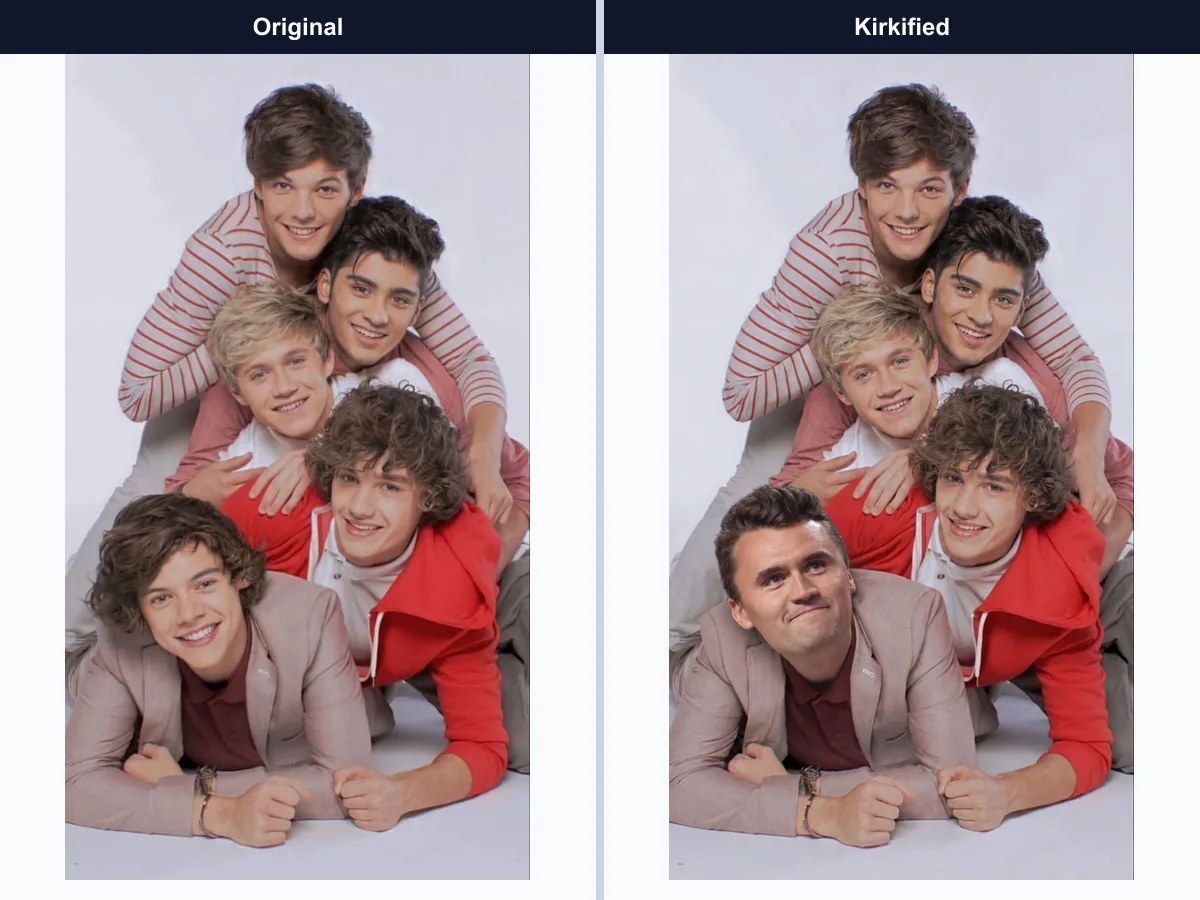
How Multiple Faces Kirkify Works
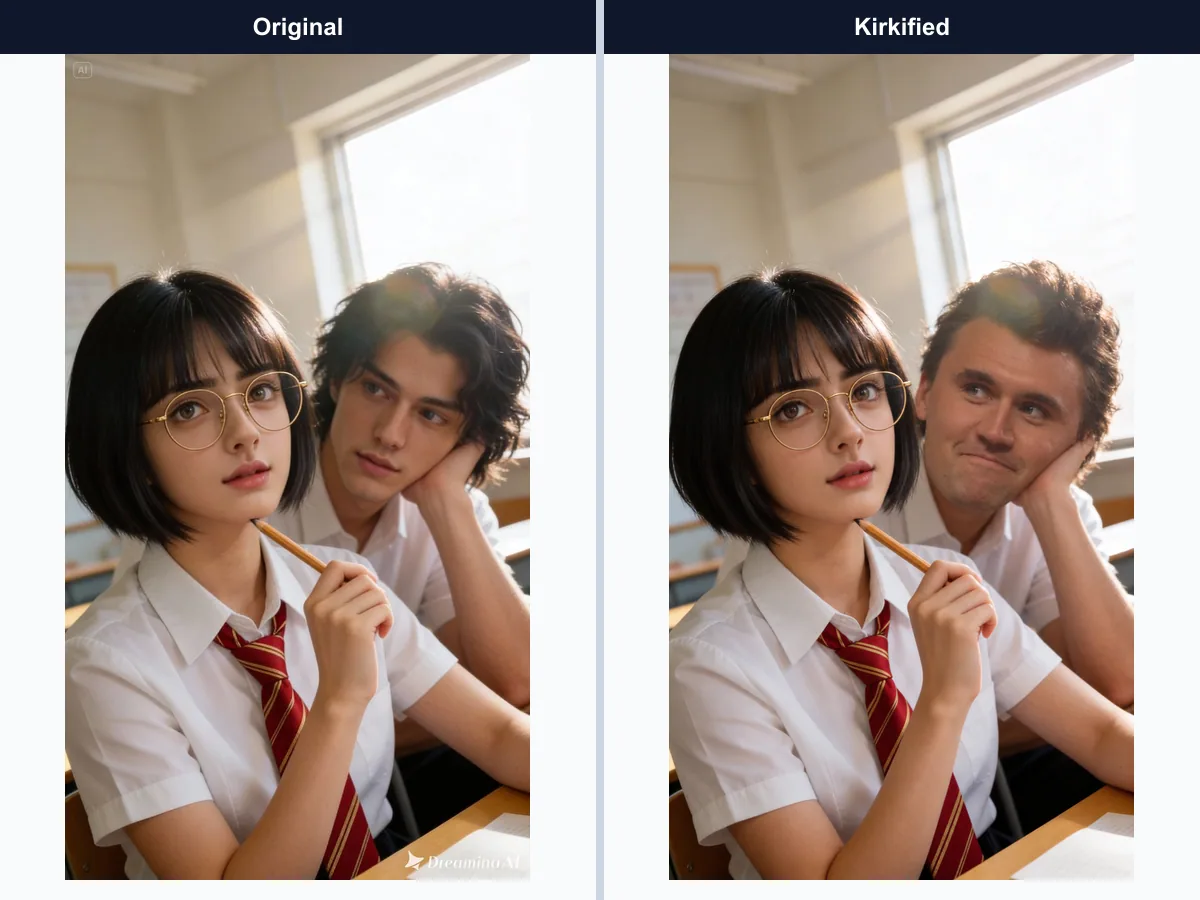
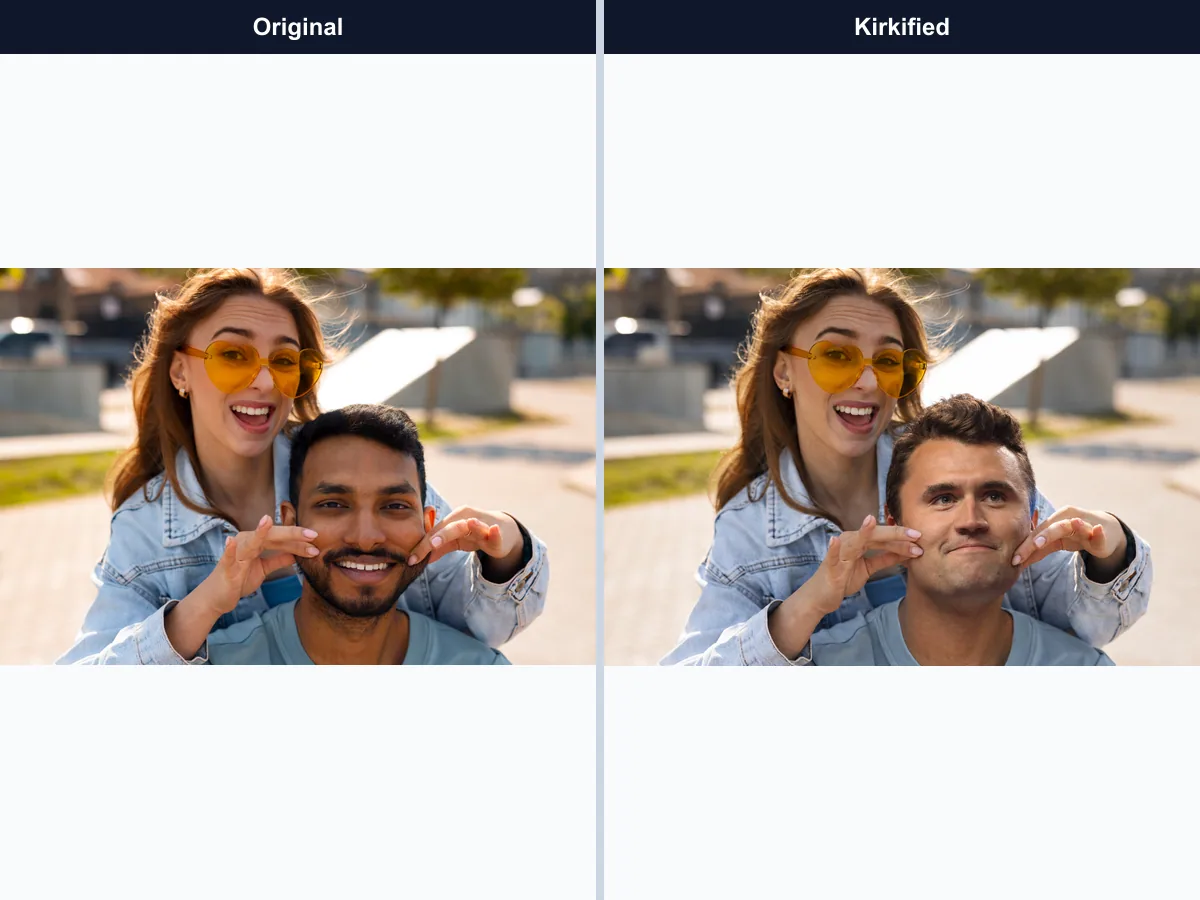
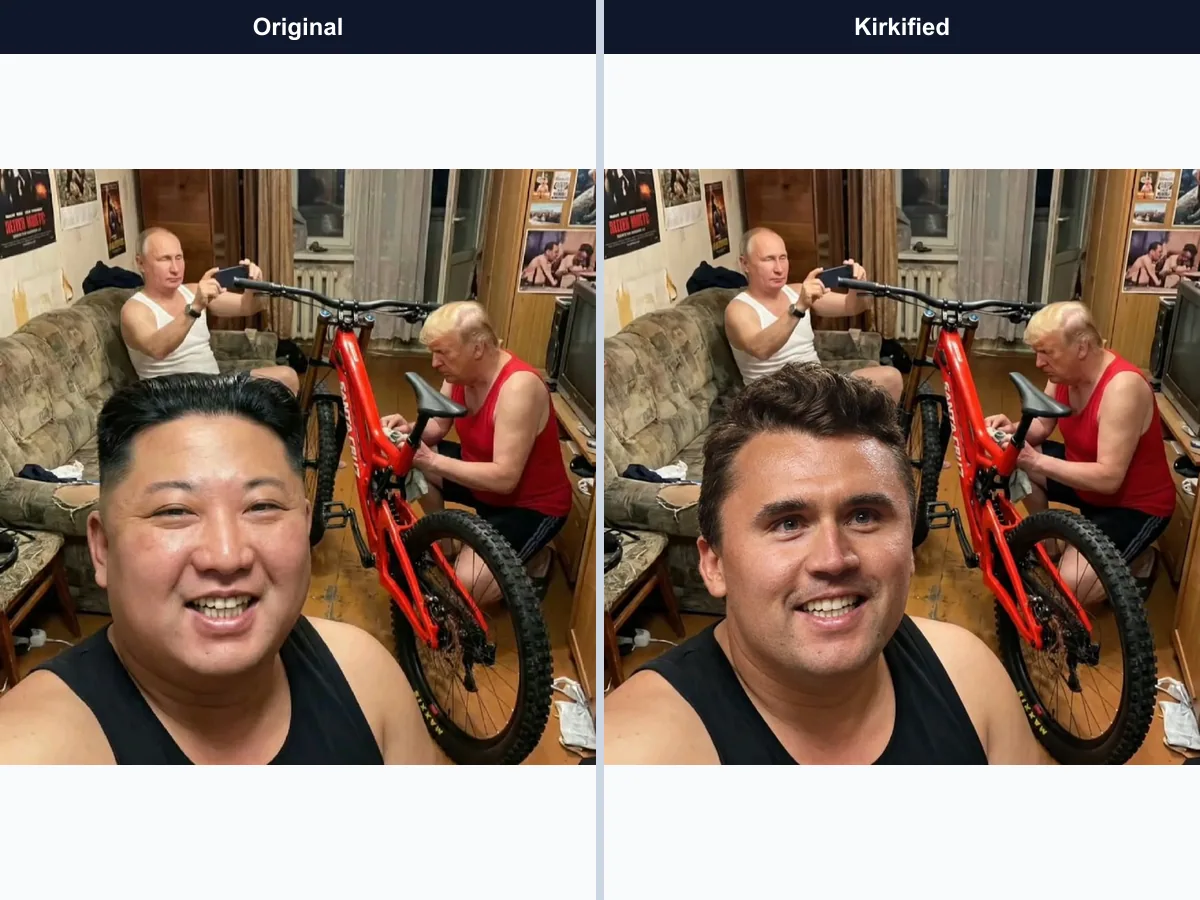
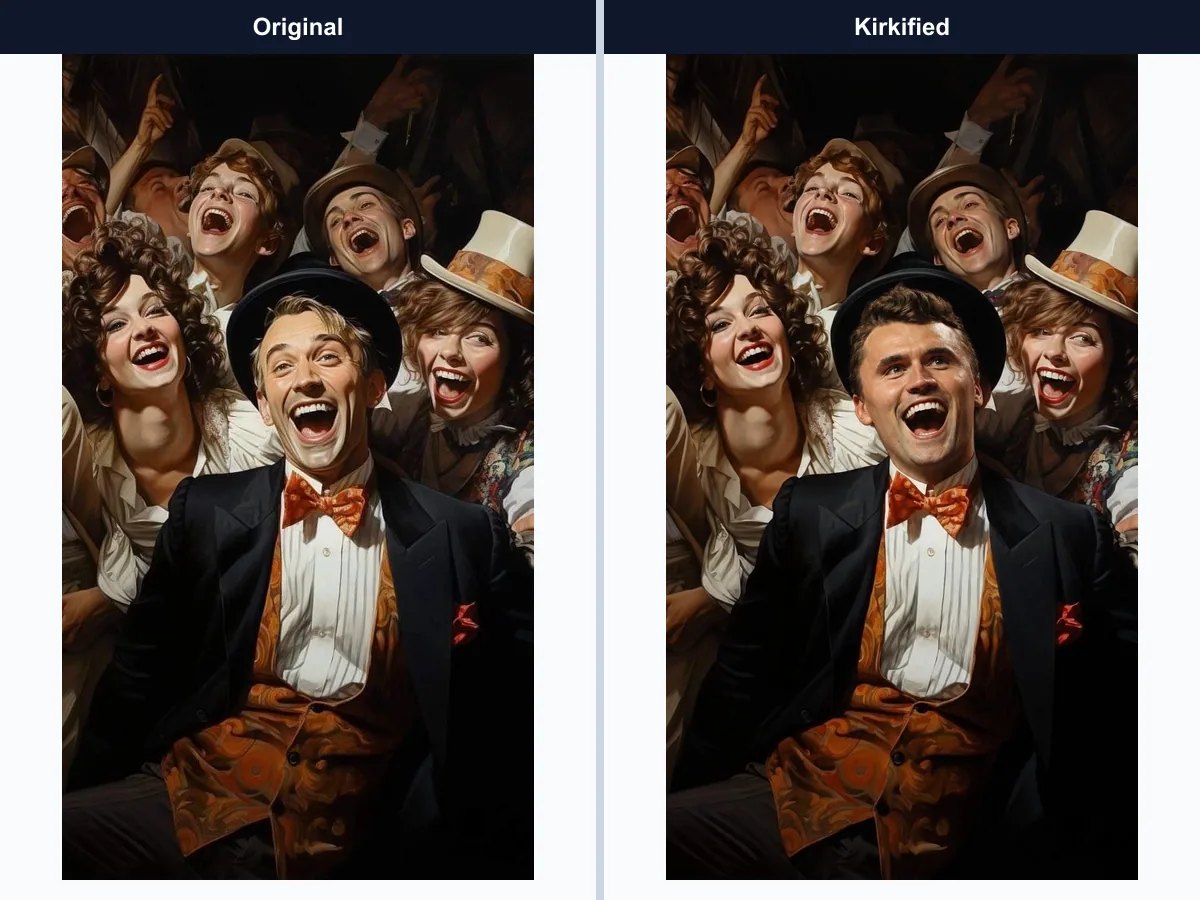
Multiple Faces Kirkify is a guided workflow for editing a multi-person image when a standard one-face tool cannot tell which person you mean. It first analyzes the uploaded image and presents the usable faces as selectable crops. You can compare each crop with the original frame, confirm the intended subject, and start the transformation only after your choice is clear. The selected person receives the Kirkify treatment while the people, background, and overall framing remain part of the scene. This approach is useful for friend groups, family snapshots, event photos, team pictures, screenshots, memes, and other images with several visible faces.
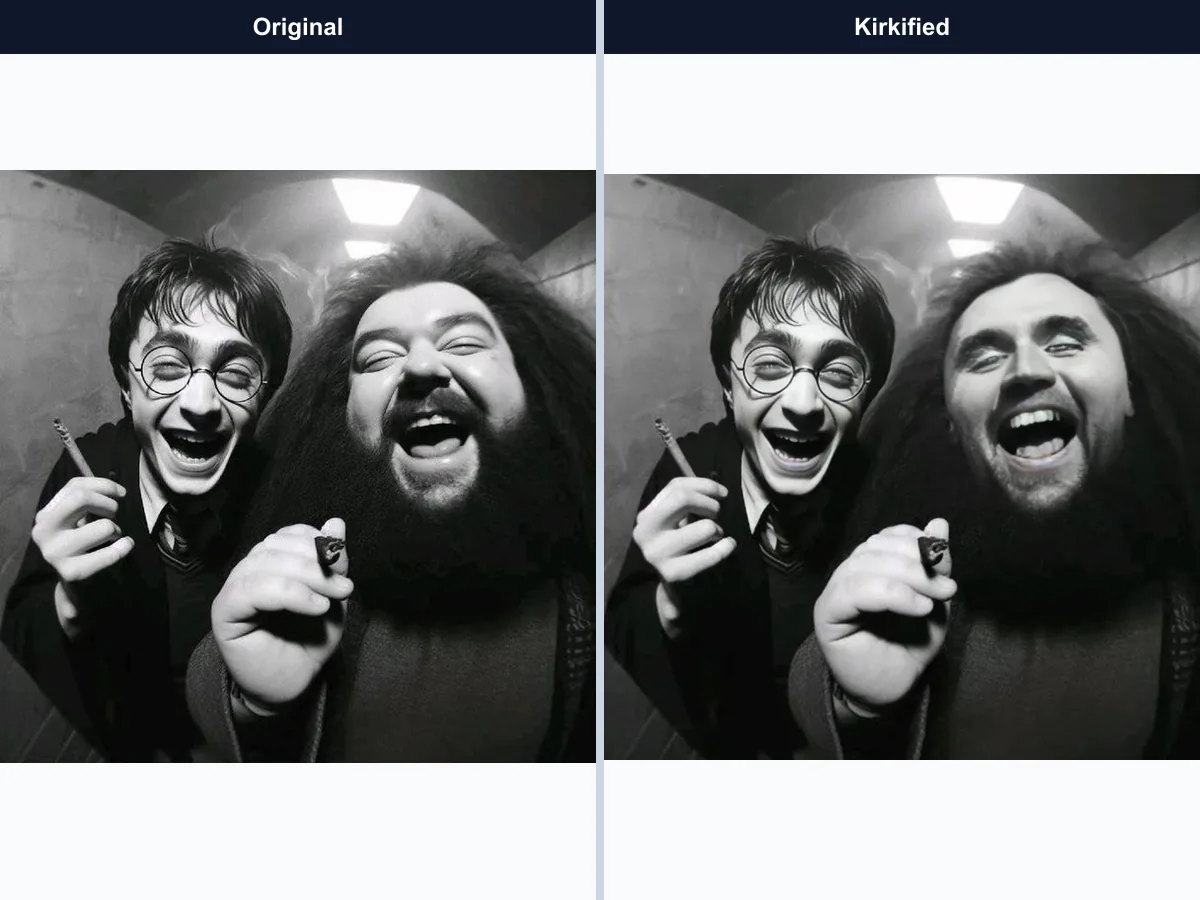
Detect Visible Faces
The detector scans the uploaded image and looks for faces that are visible enough to process. Clear frontal faces usually produce the most useful crops, while tiny, blurred, shadowed, or heavily covered faces may not be available for selection.
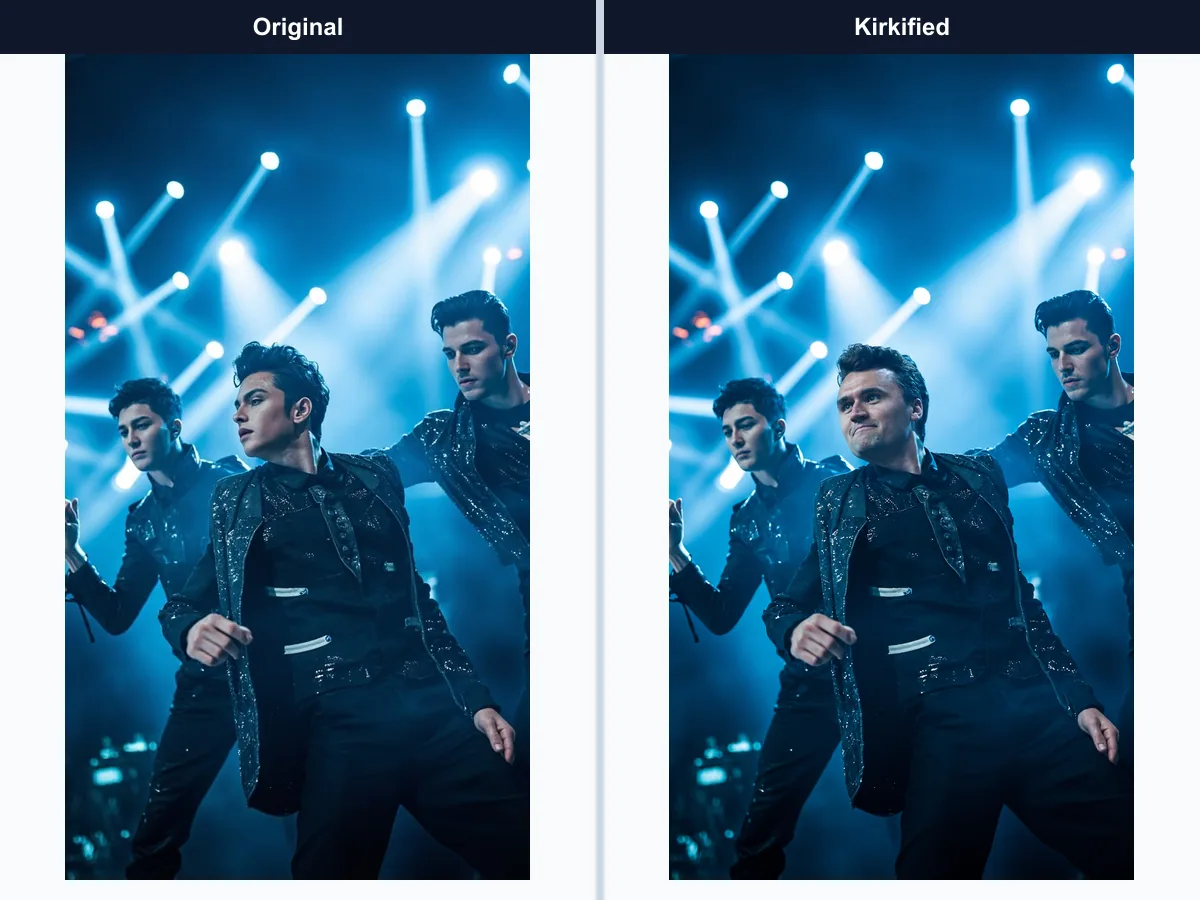
Choose One Person
Compare the detected crops with the full image and select the person you actually want to transform. You stay in control when several people have similar features, stand close together, or appear at different distances from the camera.
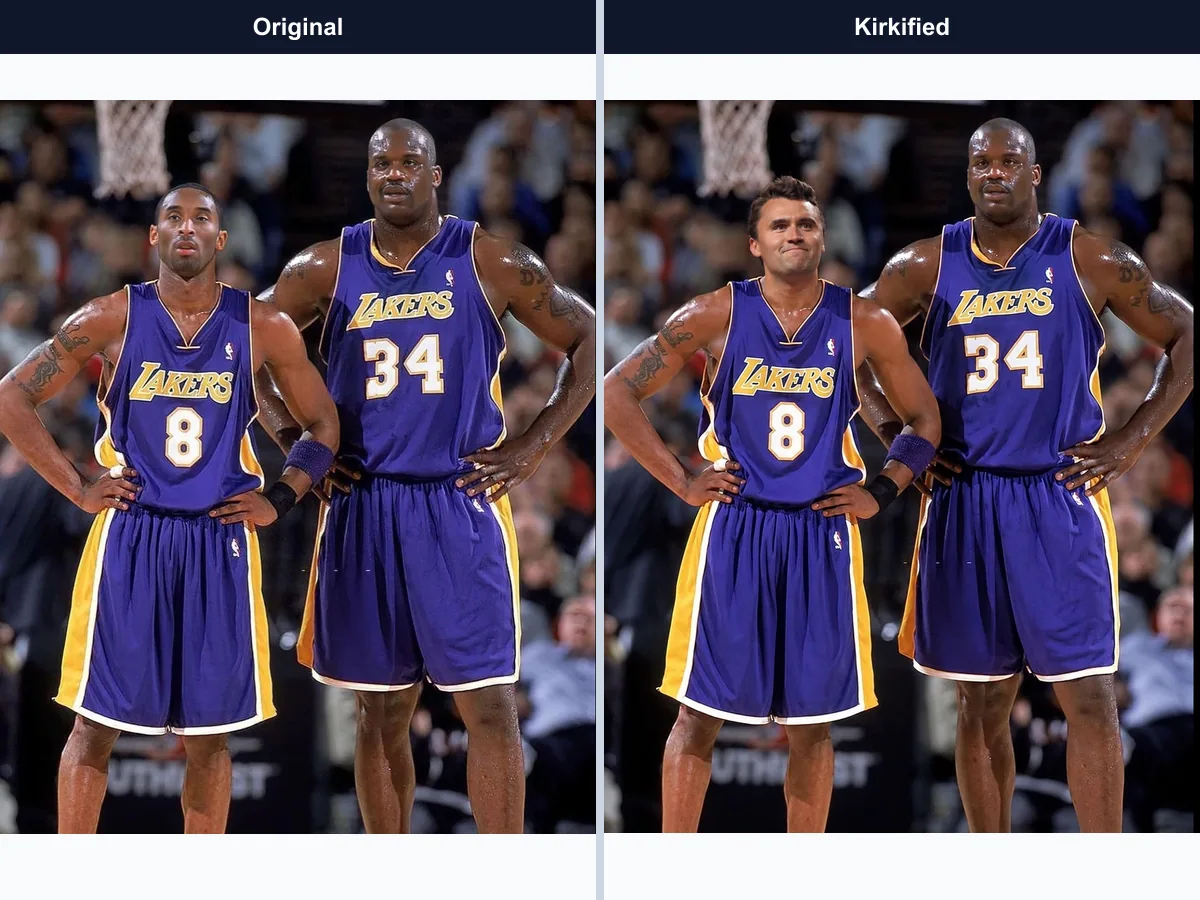
Keep the Group Context
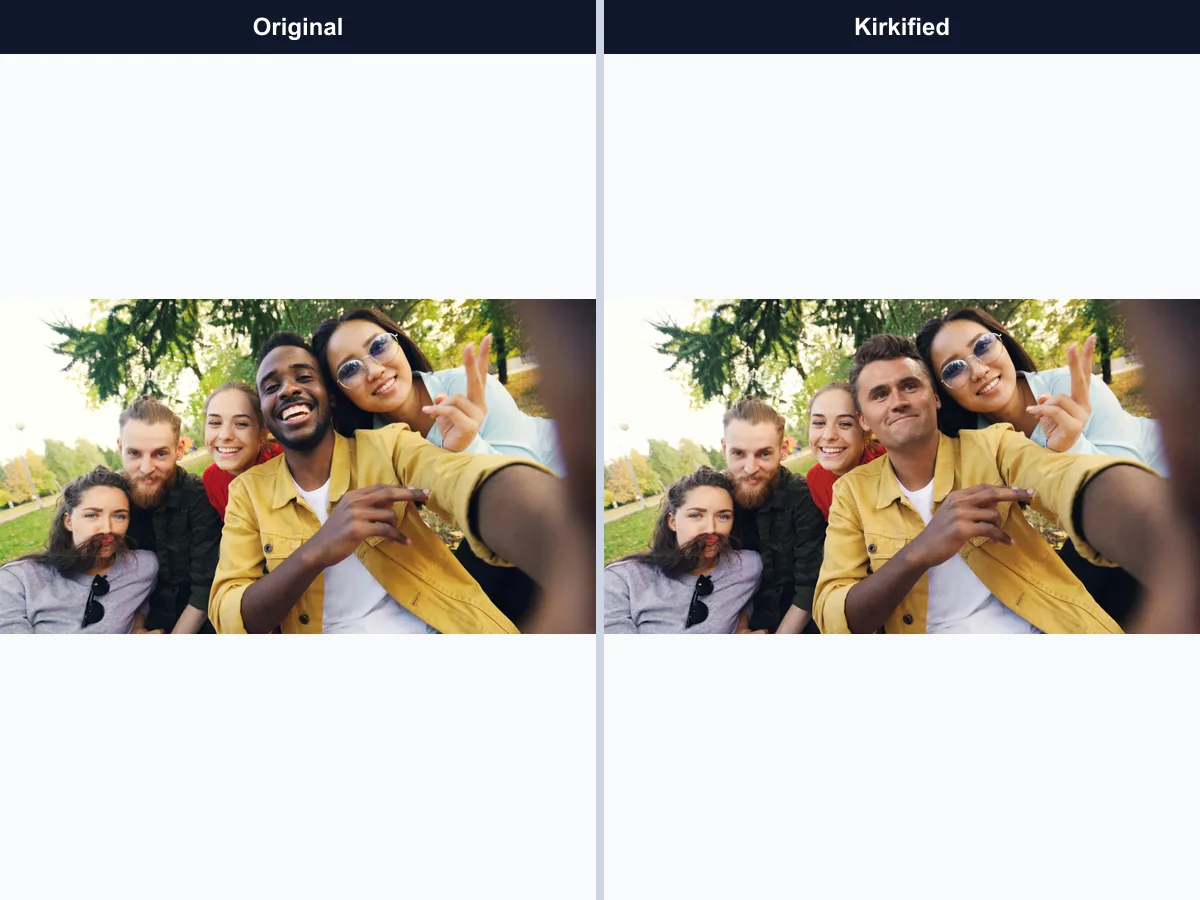
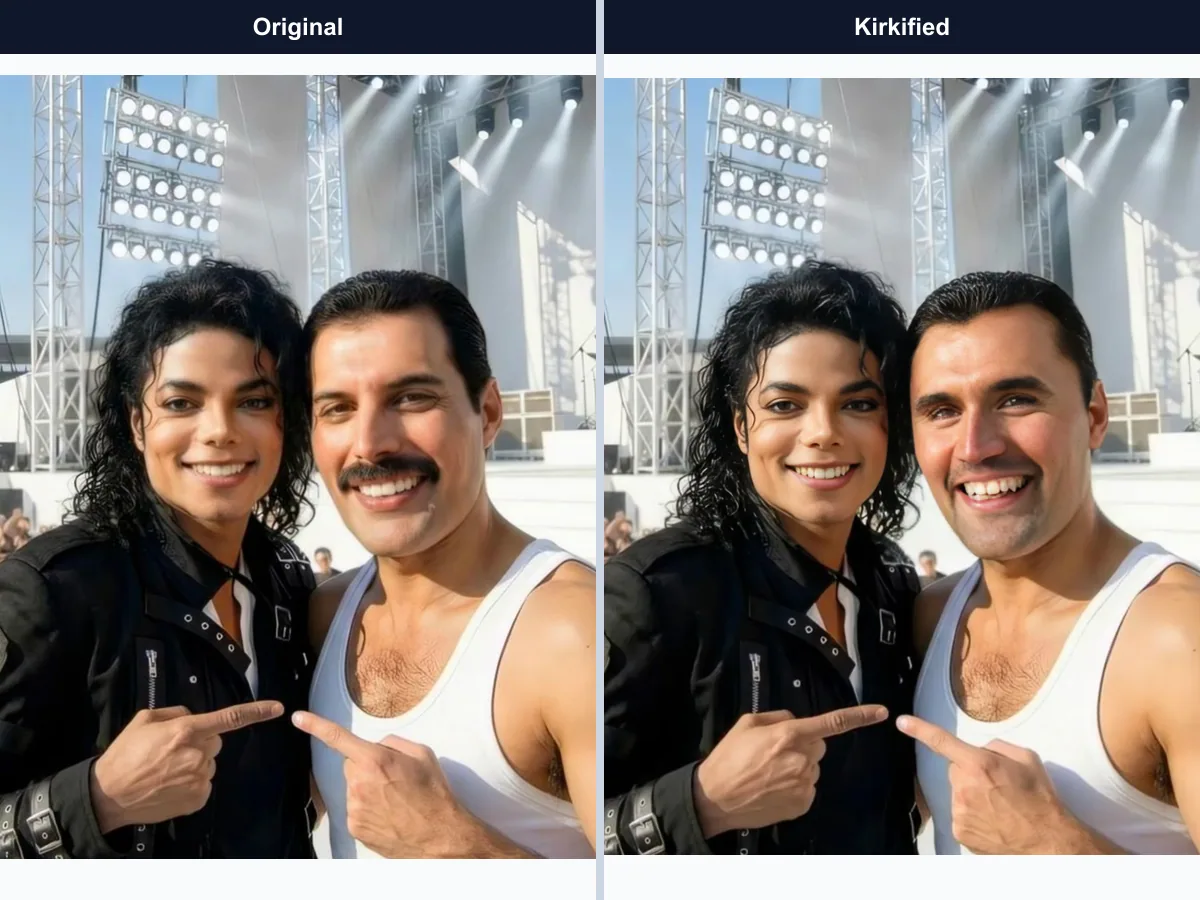
The generated result focuses on the selected face rather than replacing every person in the picture. The surrounding composition, surrounding subjects, and visual context remain recognizable so the edit still feels connected to the original moment.
Download or Share
When processing finishes, preview the result and decide whether to download it or open the built-in sharing flow. Check the image before posting and make sure everyone shown is comfortable with the edited version.
How to Use Multiple Faces Kirkify
Follow these three steps to turn a multi-person image into a focused face transformation. The selection step happens before generation, so you can verify the intended subject instead of relying on an automatic guess.
Upload a Clear Multi-Person Image
Choose a JPG, PNG, or WEBP image up to 8MB. A sharp, well-lit source with faces large enough to recognize gives the detector more useful detail. Avoid extreme crops, strong motion blur, heavy shadows, and faces hidden behind hats, hair, sunglasses, or another person. A larger original file is usually better than a compressed screenshot.
Review and Select a Face
Wait for face detection to finish, compare the returned crops with the original image, and click the one person you want to transform. Take a moment to verify the crop before submitting, especially when two people are close together or look alike.
Generate for 2 Credits
Start the transformation after your selection is confirmed. The workflow uses 2 credits total, including face detection and generation. Monitor the progress state, then preview the completed image and choose whether to download or share it.
Why Choose Multiple Faces Kirkify
A deliberate selection step makes multi-person editing more predictable when several people appear close together. Instead of asking the model to infer a subject from the entire frame, you identify the intended face before the image is generated.
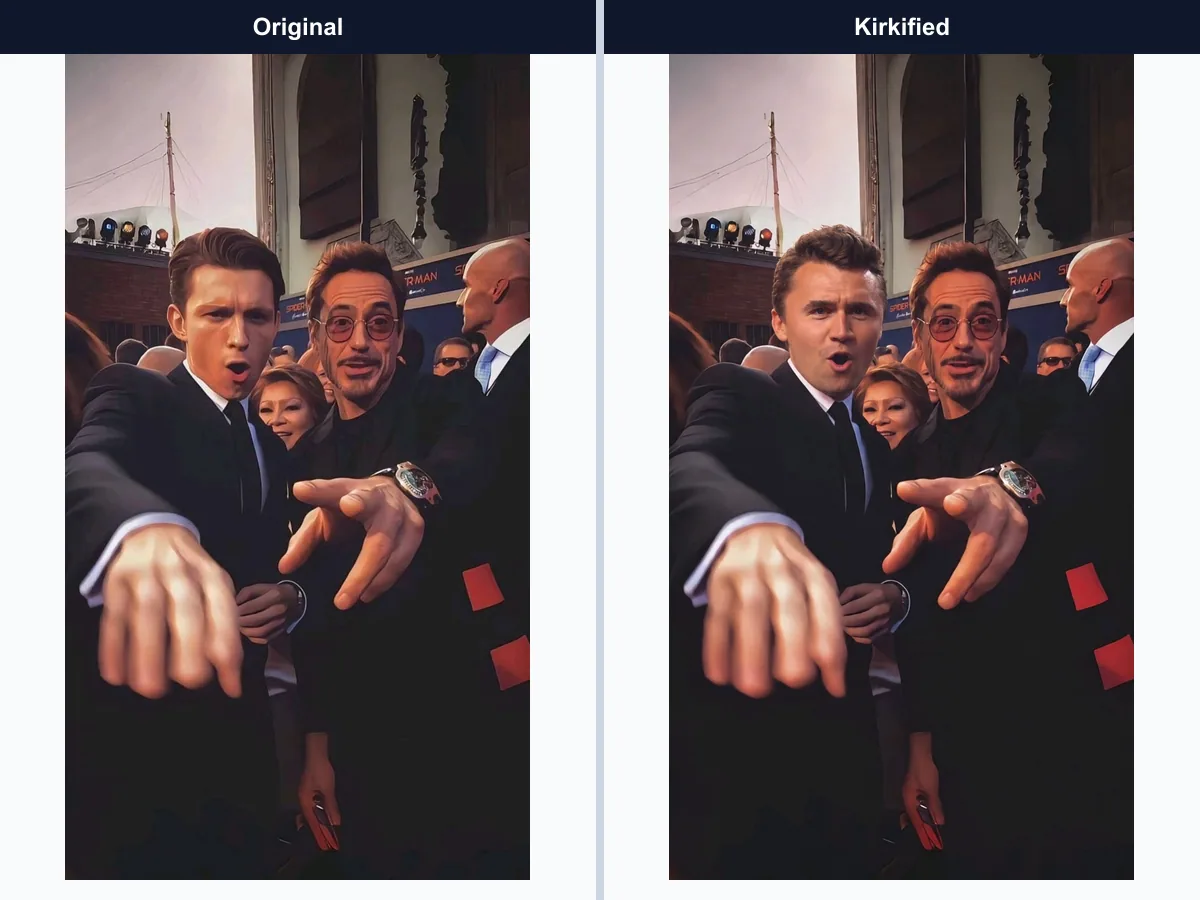
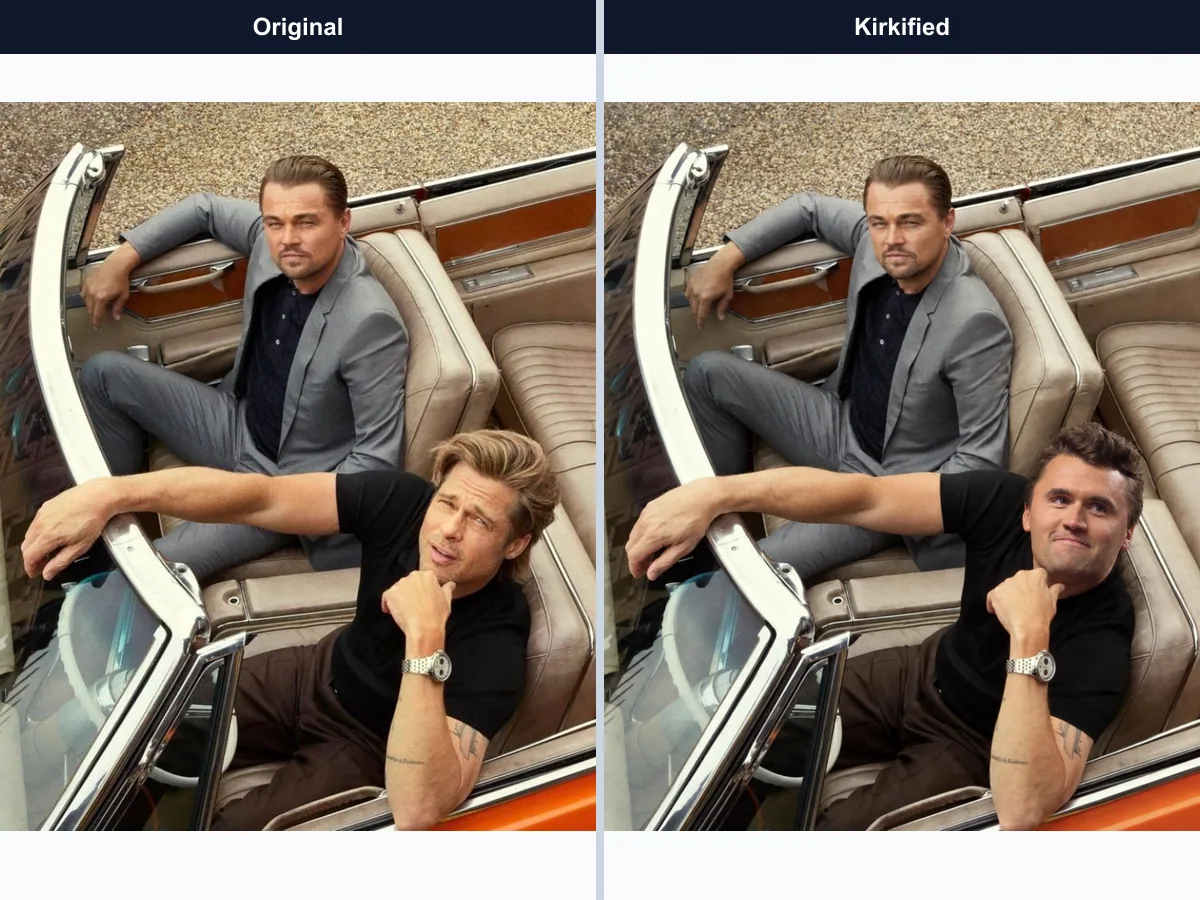
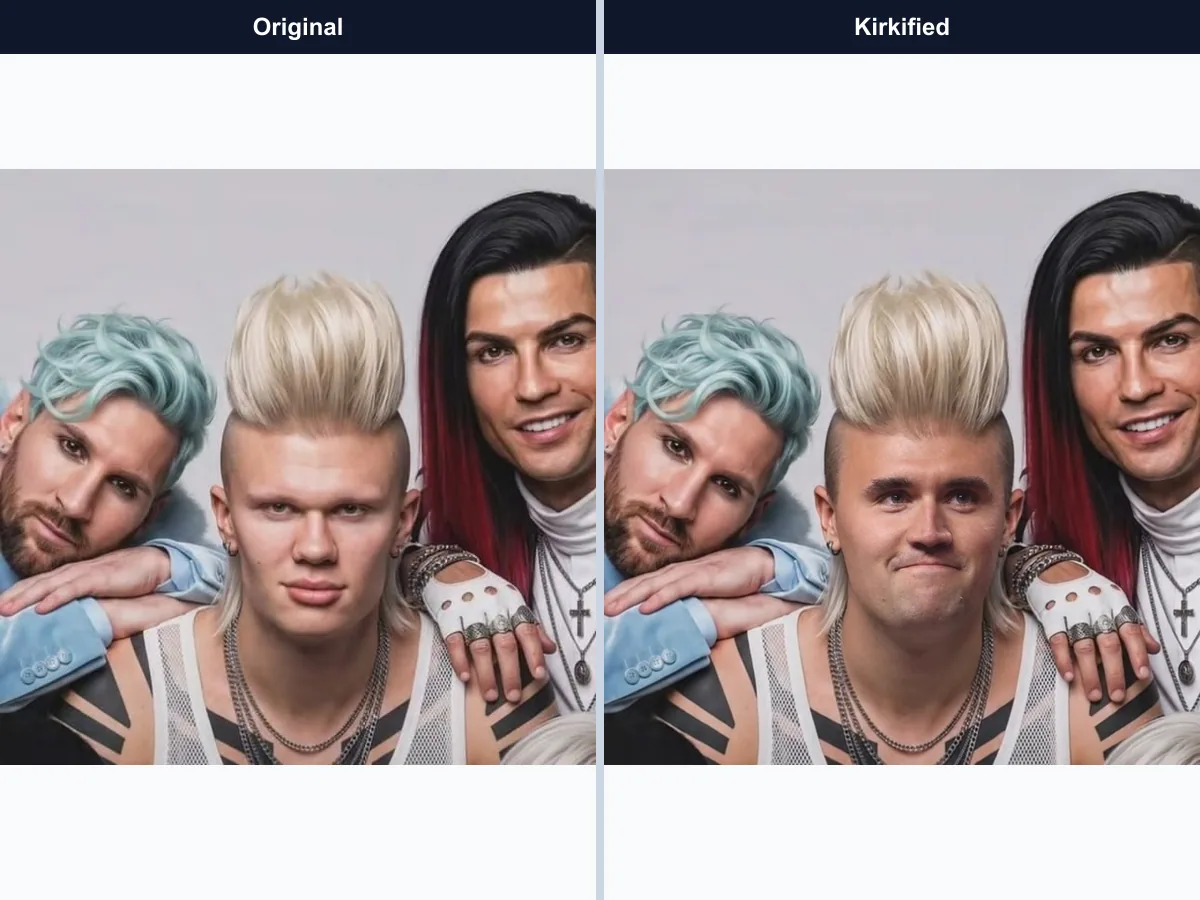
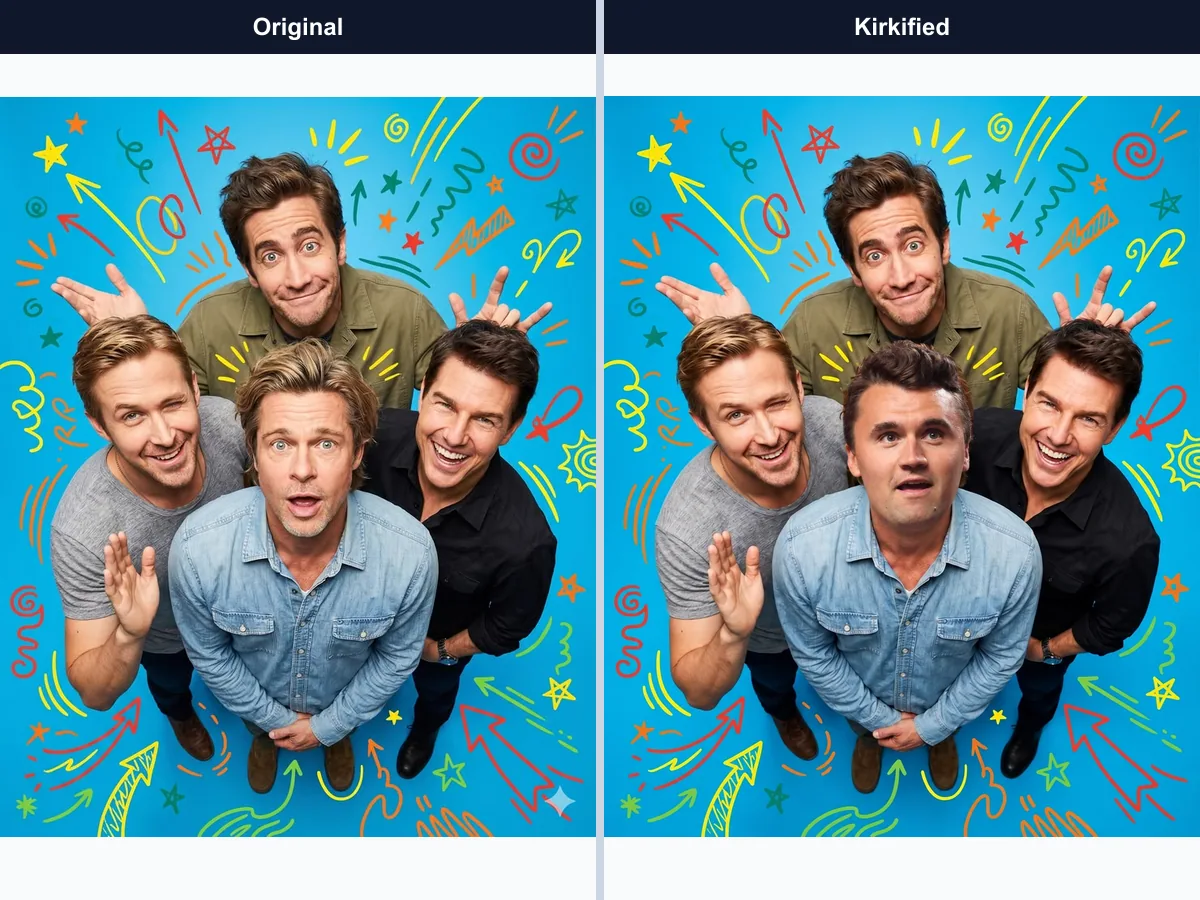
Multiple Faces Kirkify Examples
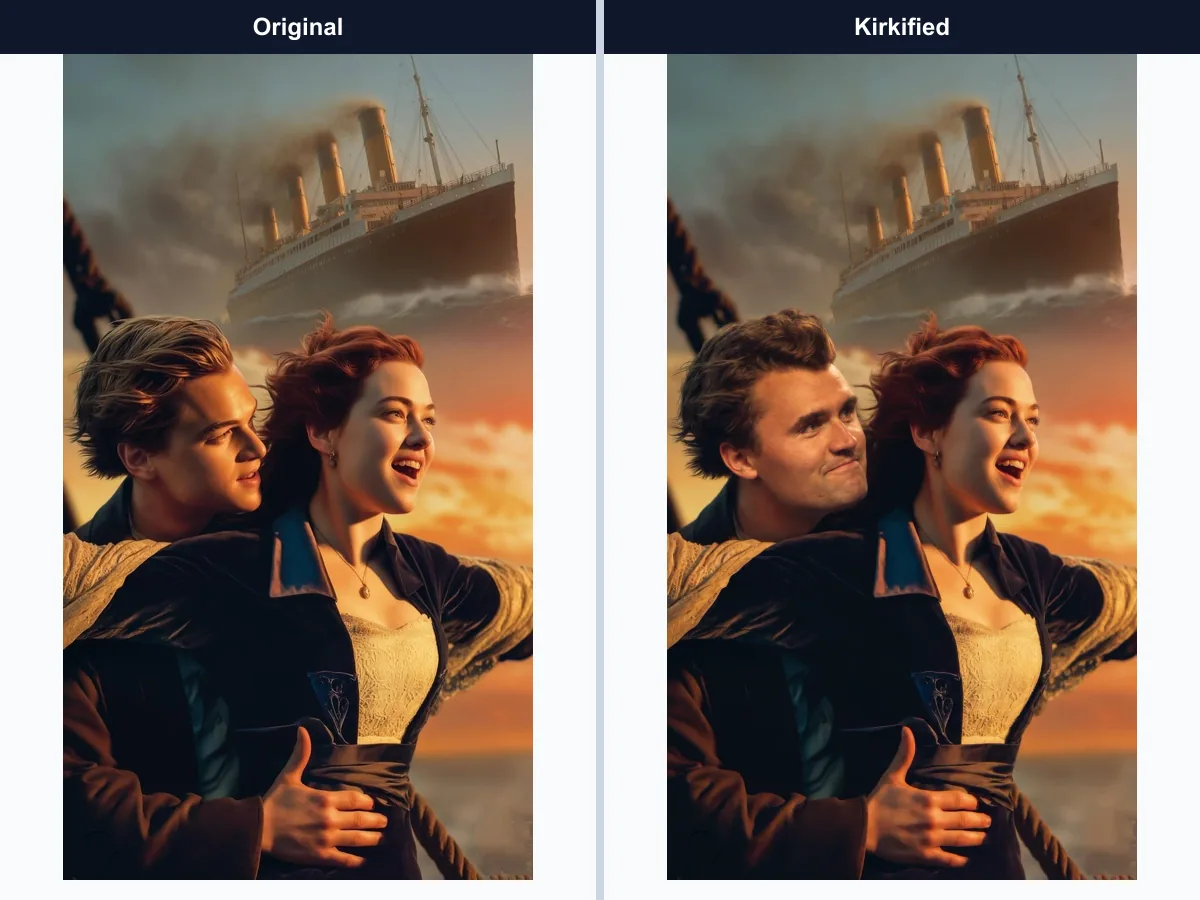
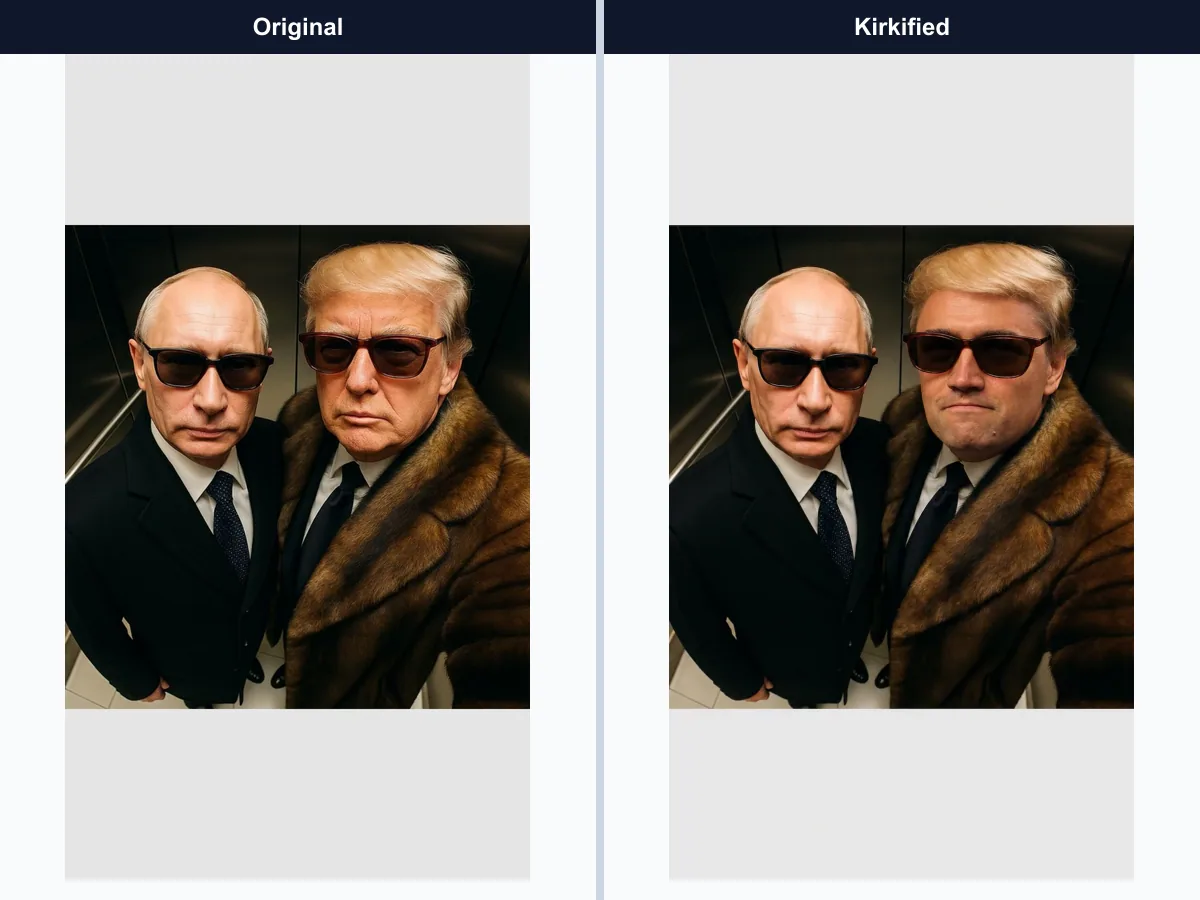
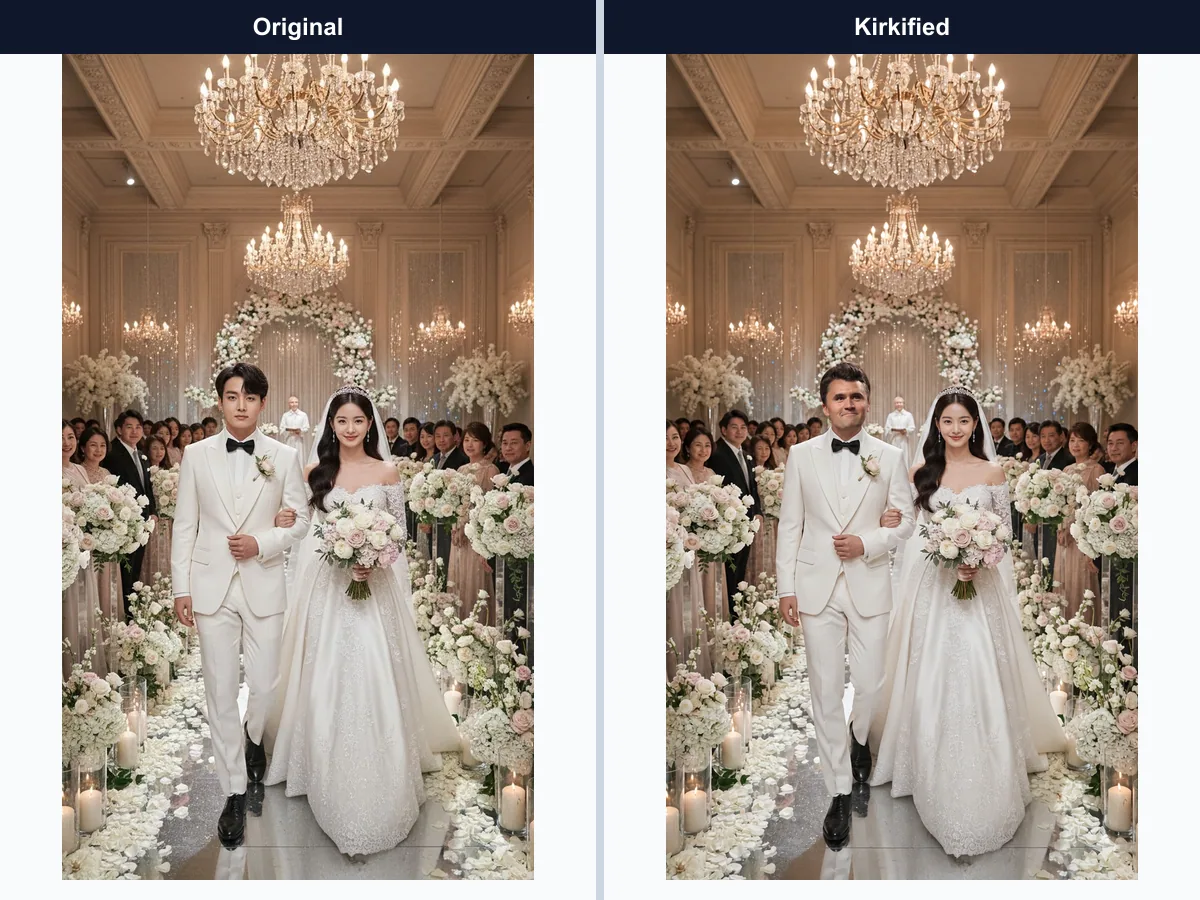
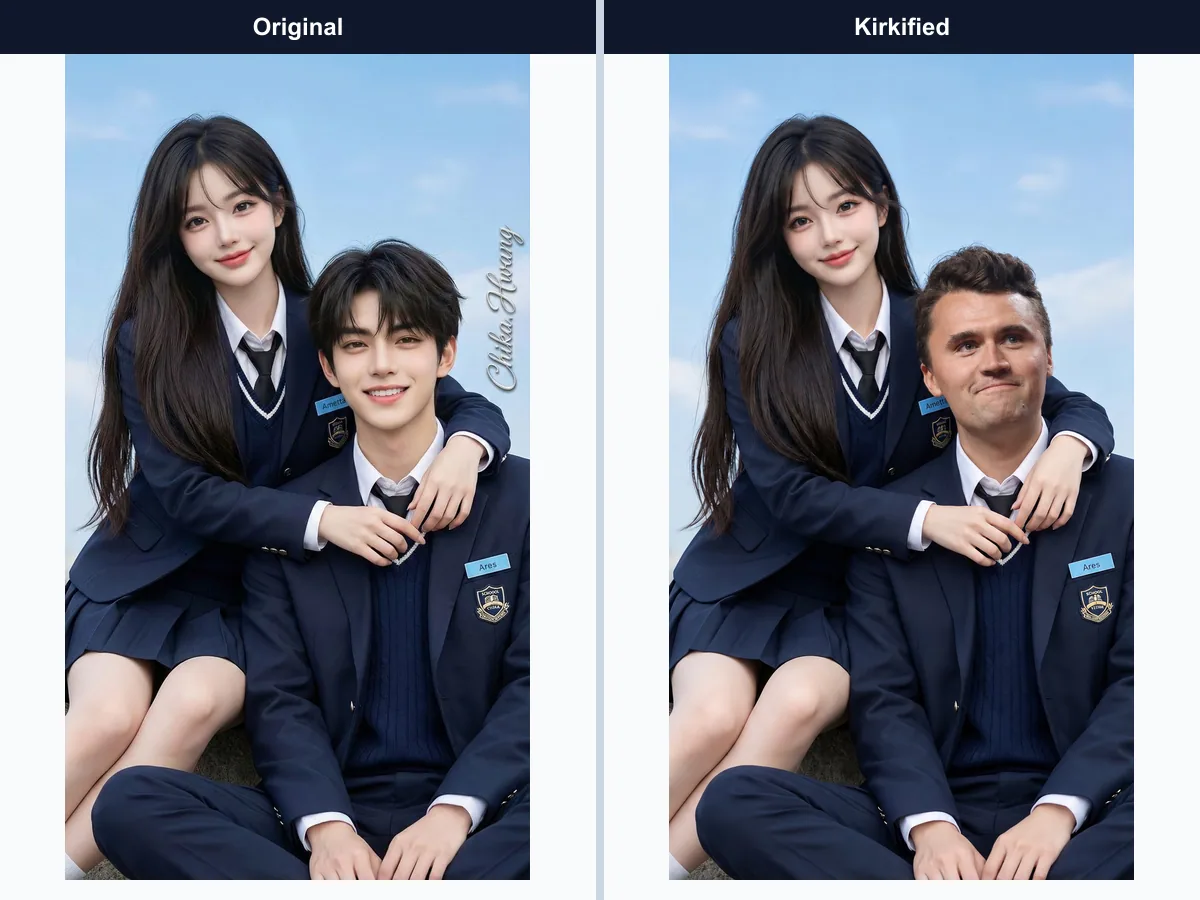
Browse comparison examples where one selected person receives a Kirkify transformation while the surrounding scene remains recognizable. Use them to understand how face choice, image clarity, and the original framing influence the finished result.
Multiple Faces Kirkify Features
Everything needed to upload the source image, identify usable faces, select one person, and export the completed image in one browser workflow. The controls are designed to make the subject choice visible before generation begins and the result easy to review afterward.
Multi-Person Image Upload
Accepts JPG, PNG, and WEBP images up to 8MB so you can start with a common photo format. Use the clearest original available for better face detail.
Face Detection
Finds visible faces and presents selectable crops before generation begins, giving you a clear way to identify the intended subject.
Single-Face Selection
Lets you choose exactly one detected face for each generation instead of editing the whole group by accident.
Generation Progress
Shows detection and generation status so you know whether the tool is ready for your selection, working on the image, or ready for review.
Image Download
Downloads the completed image after processing succeeds, with the original composition preserved around the selected person.
Share Controls
Opens the existing Kirkify sharing flow for the finished image without requiring a separate export step. Review permissions before posting.
Multiple Faces Kirkify FAQ
Answers about face selection, supported images, output quality, privacy-conscious use, credits, retries, and sharing transformed results. These guidelines also explain what to do when a face is not detected or the selected subject is incorrect.
Try Multiple Faces Kirkify
Upload a supported image, review the detected faces, choose one person, and create a focused multi-person transformation for 2 credits total. You can preview the result before downloading or sharing it.