
Multiple Faces Kirkify for Group PhotosChoose the Right Face Before You Generate
Upload a group photo, let Kirkify AI detect the visible faces, and choose exactly who to transform. Multiple Faces Kirkify keeps the group context while focusing the generation on one selected person. The complete workflow costs 2 credits.
Detect faces, choose one person, 2 credits total
Kirkify AI Studio
Upload your photo and watch the AI magic transform every face into Kirkify's iconic appearance
Kirkify Multiple Faces in Group Shots
Upload a group photo, choose one detected face, and Kirkify it.
Upload & detect faces · 2 credits
Drop image or click upload
Group photos with clear faces work best
Tips
1. Upload a group photo.
2. Choose one face.
3. Click Kirkify.
How Multiple Faces Kirkify Works for Group Photos
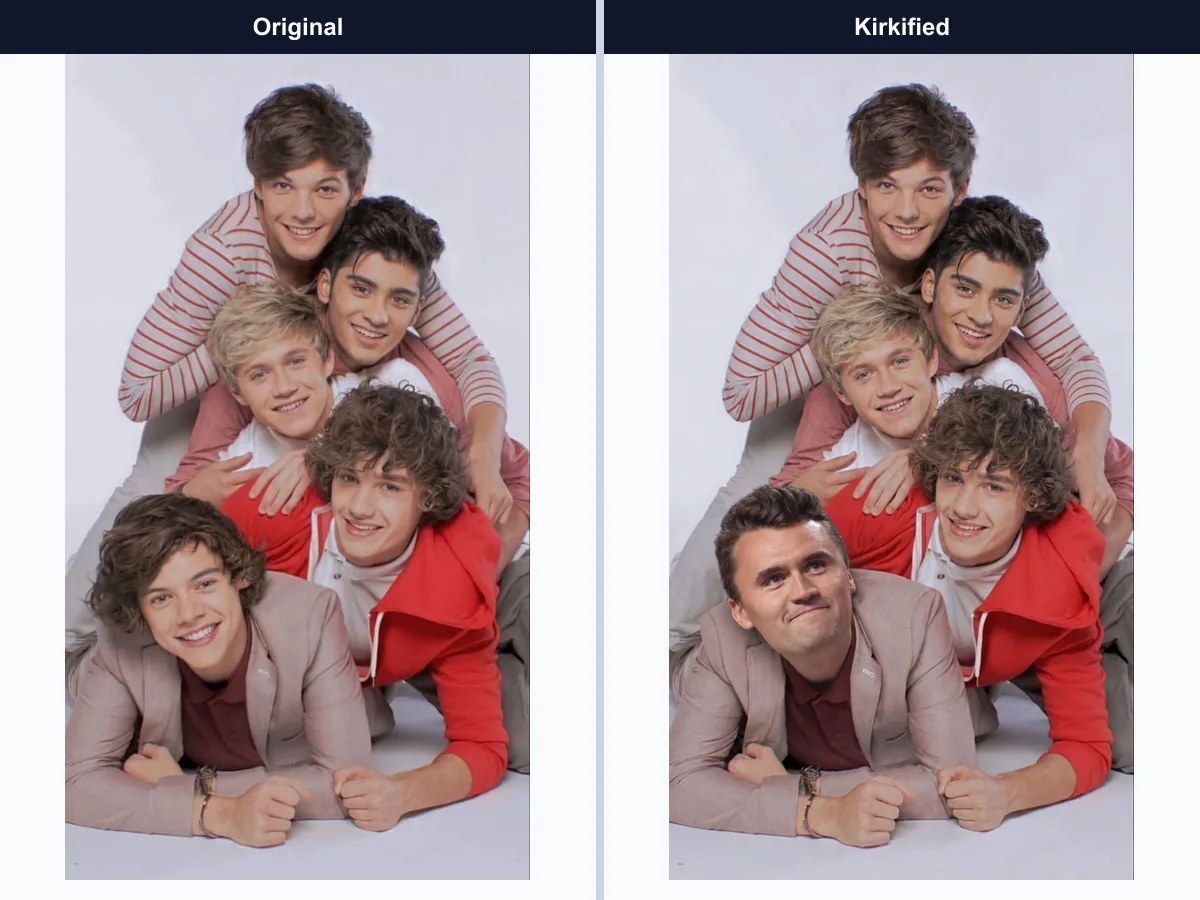
Multiple Faces Kirkify is a guided group-photo workflow for moments where a single-face editor cannot tell who you mean. It analyzes the image, shows usable face crops, and lets you choose the subject. The selected person receives the Kirkify transformation while the group framing stays in context. Use it for friend groups, events, screenshots, memes, or any image with several visible faces.
Detect Visible Faces
The tool scans the group photo and displays a selectable crop for each face that is clear enough to process.
Choose One Person
Compare the detected crops and select the person you want to transform instead of leaving the decision to an automatic guess.
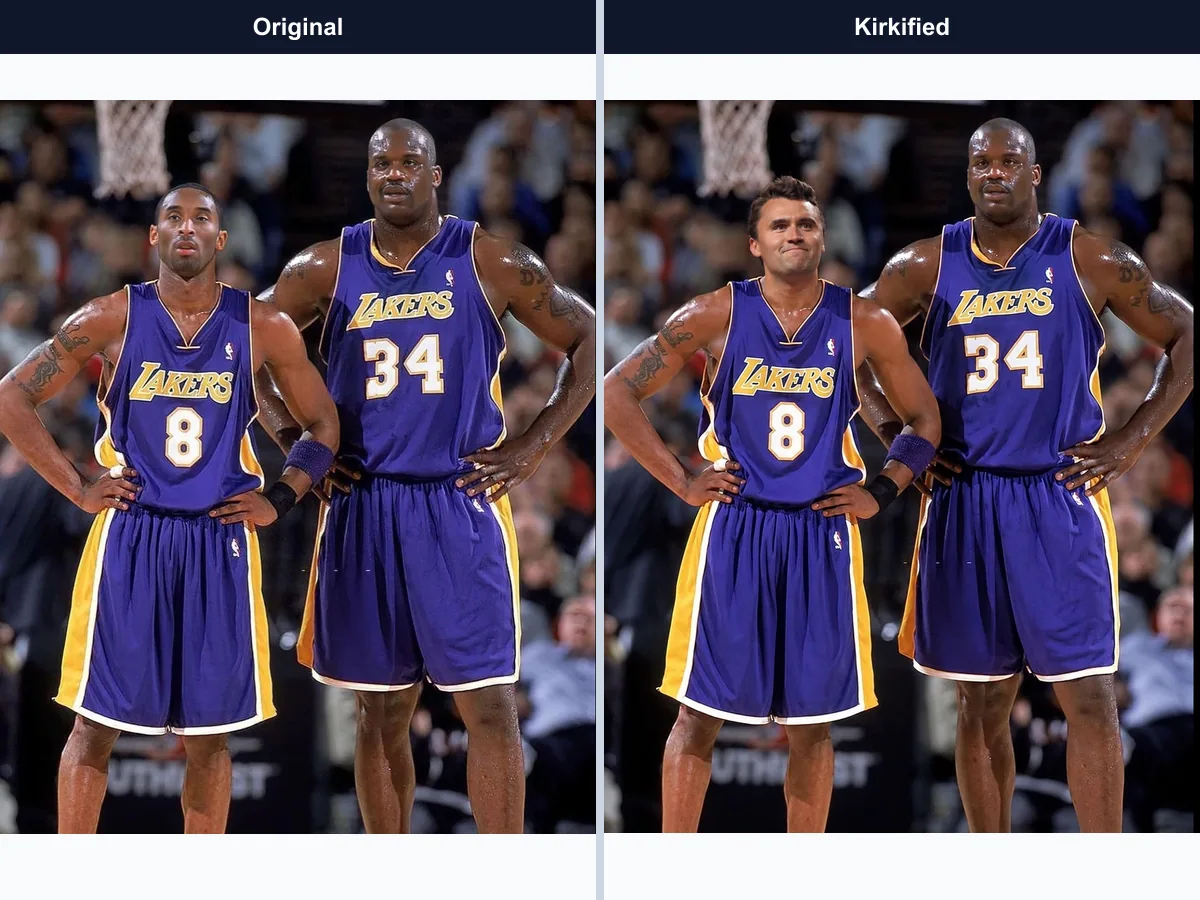
Keep the Group Context
The generated result keeps the group-photo composition around the selected face so the image still feels like the original moment.
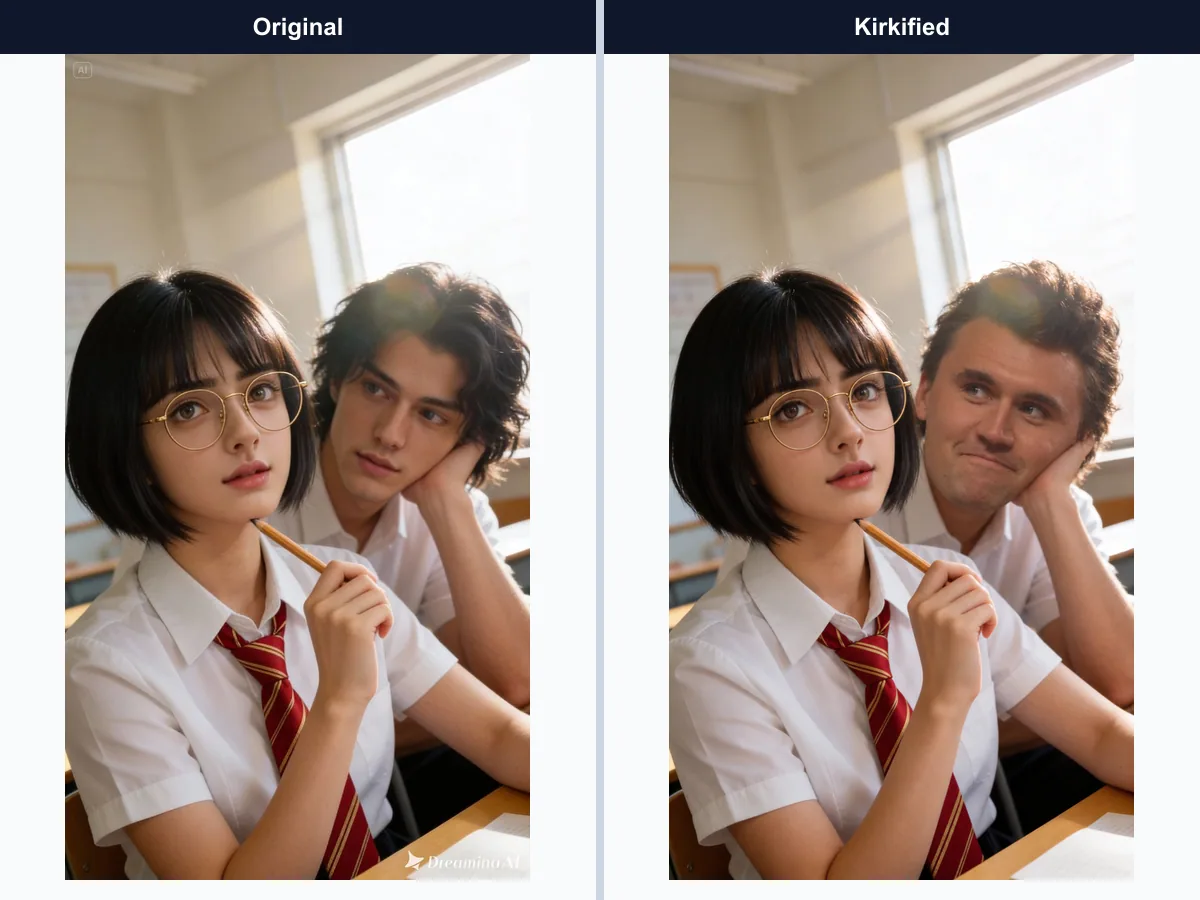
Download or Share
Preview the finished image, download it, or open the built-in sharing flow when the generation is ready.
How to Use Multiple Faces Kirkify Step by Step
Follow three simple steps to turn a group photo into a focused face transformation without guessing which person the model should edit.
Upload a Clear Group Photo
Choose a JPG, PNG, or WEBP image up to 8MB. A sharp, well-lit photo with faces large enough to recognize gives the detector more useful detail.
Review and Select a Face
Wait for detection, compare the face crops, and click the one person you want to transform before generation starts.
Generate for 2 Credits
Start the transformation, monitor progress, then preview, download, or share the result when it is ready.
Why Choose Multiple Faces Kirkify for Group Photos?
A controlled selection step makes group-photo editing more predictable when several people appear close together.
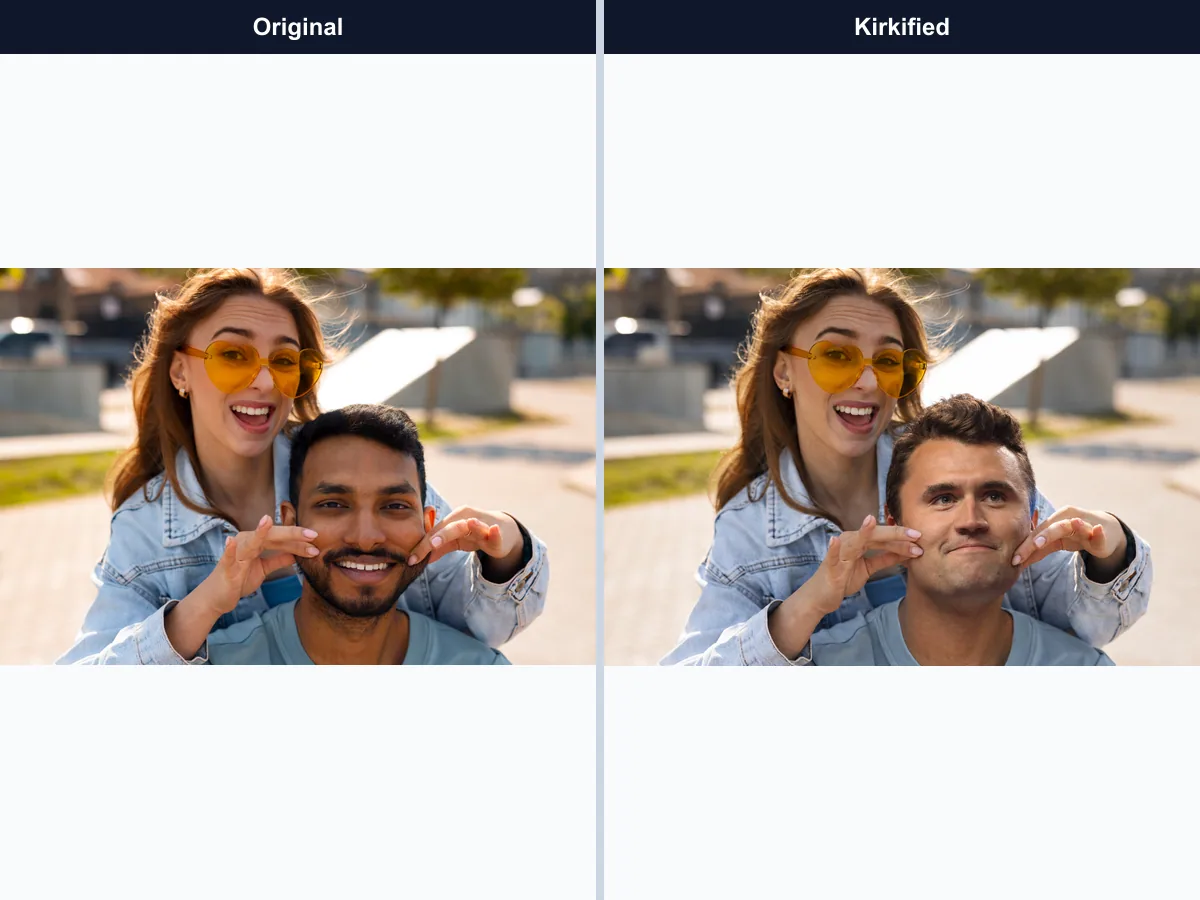
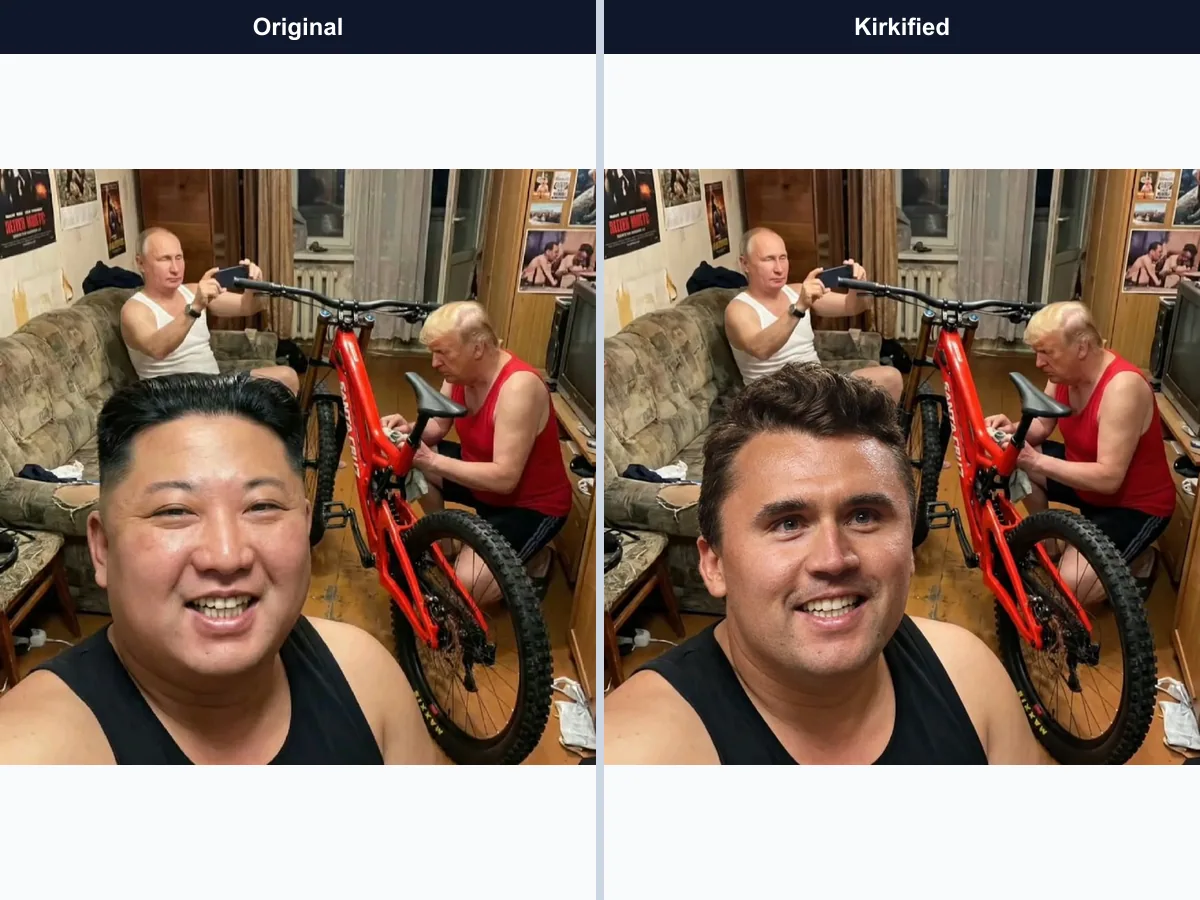
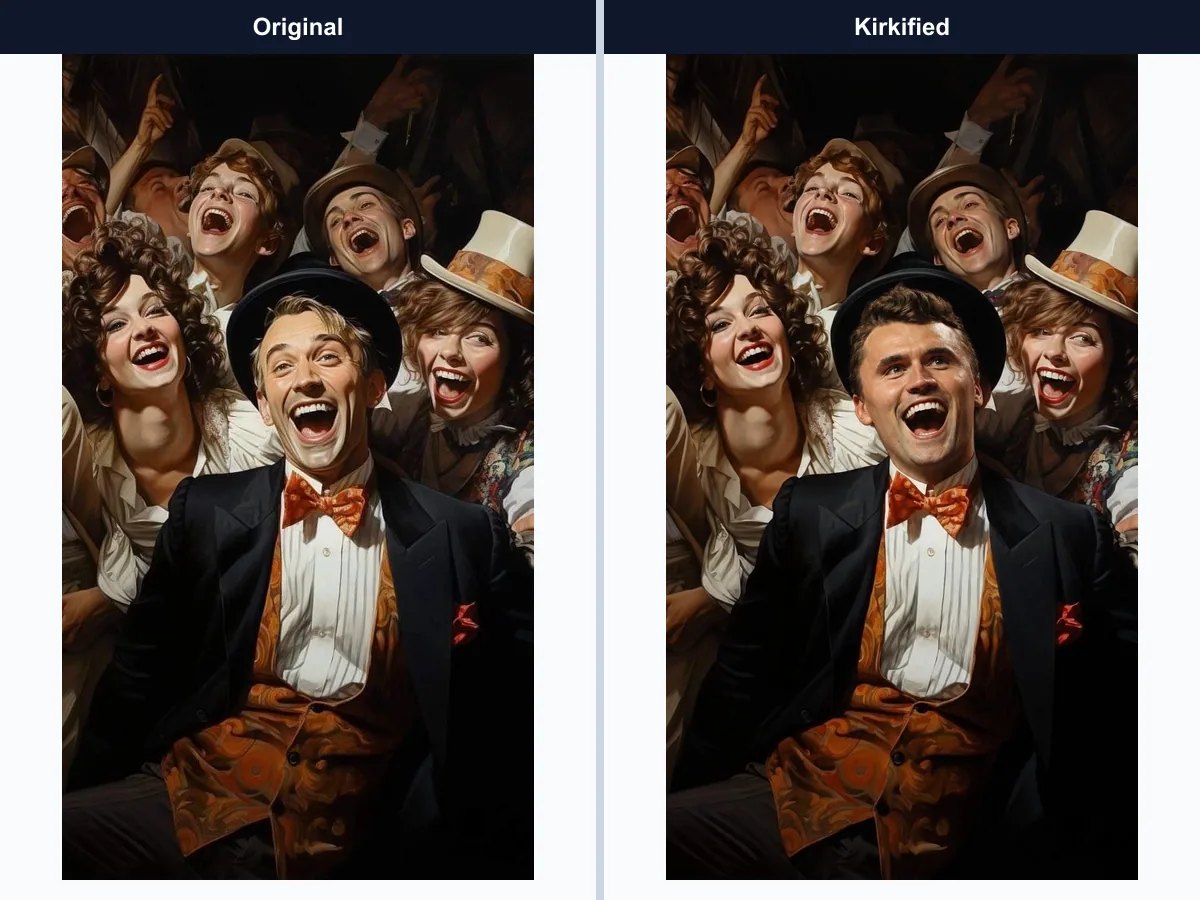
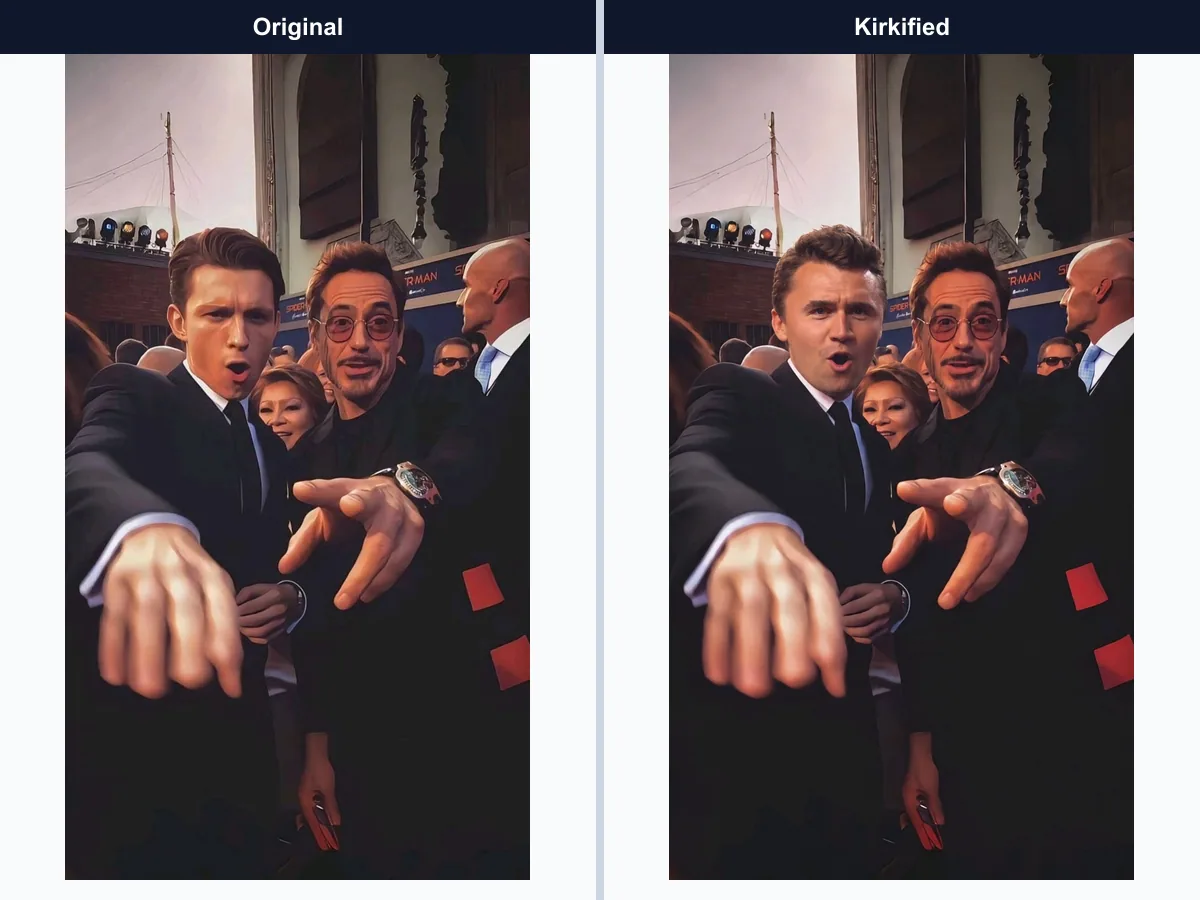
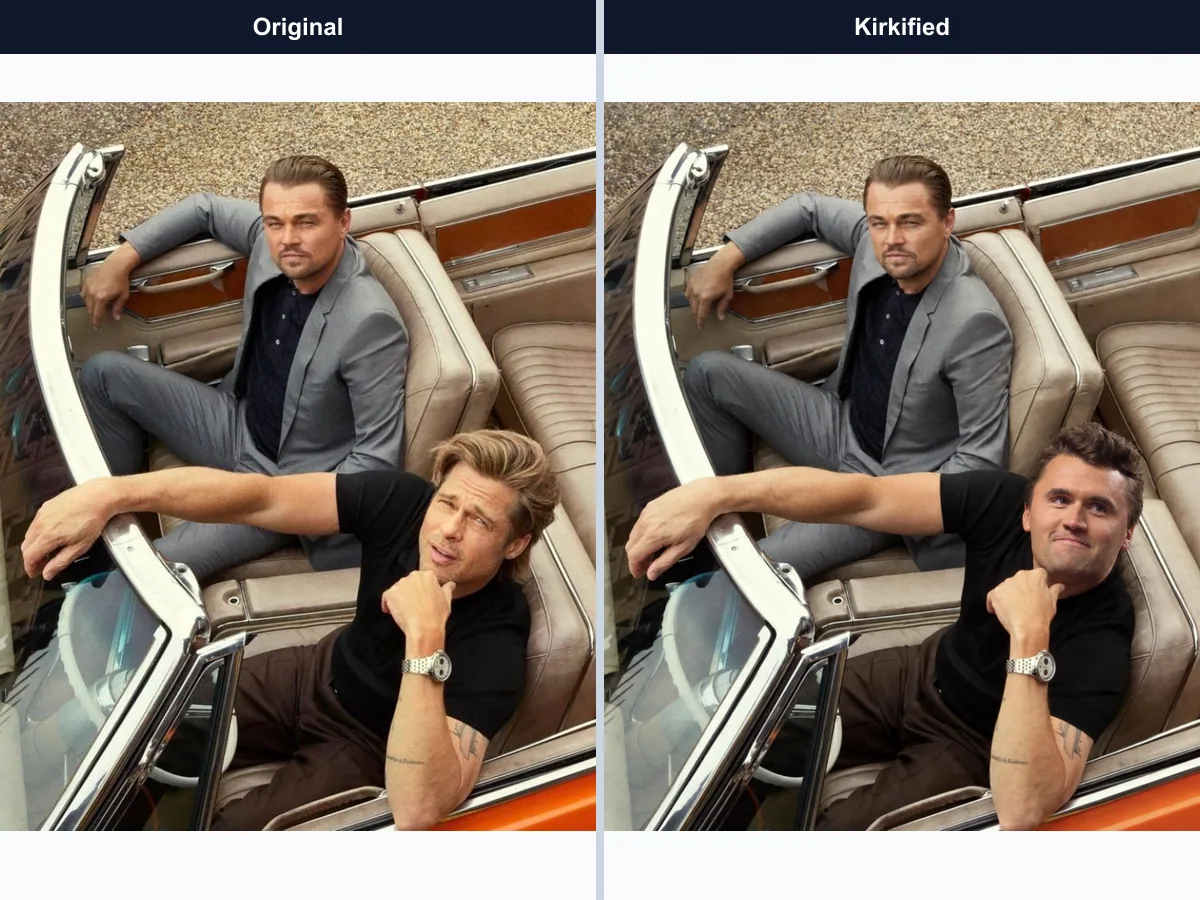
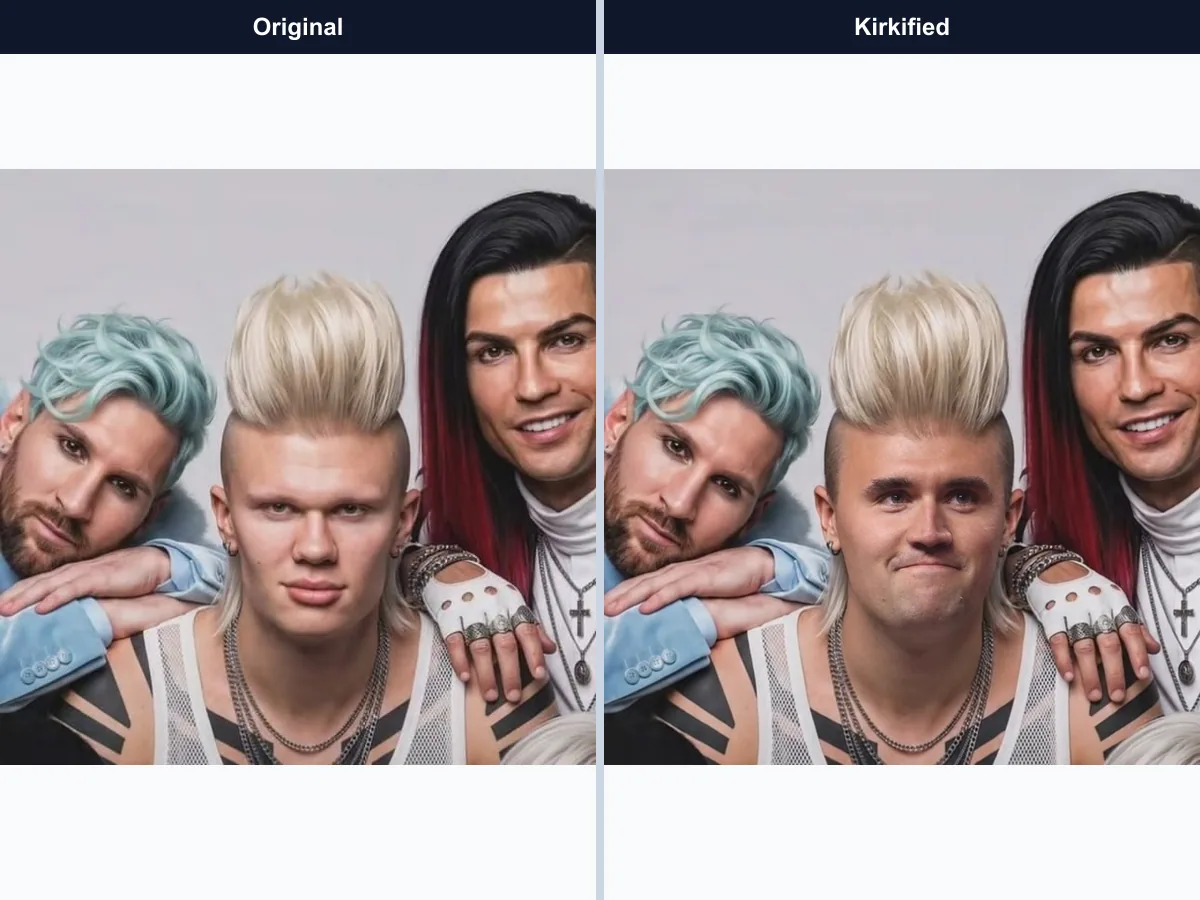
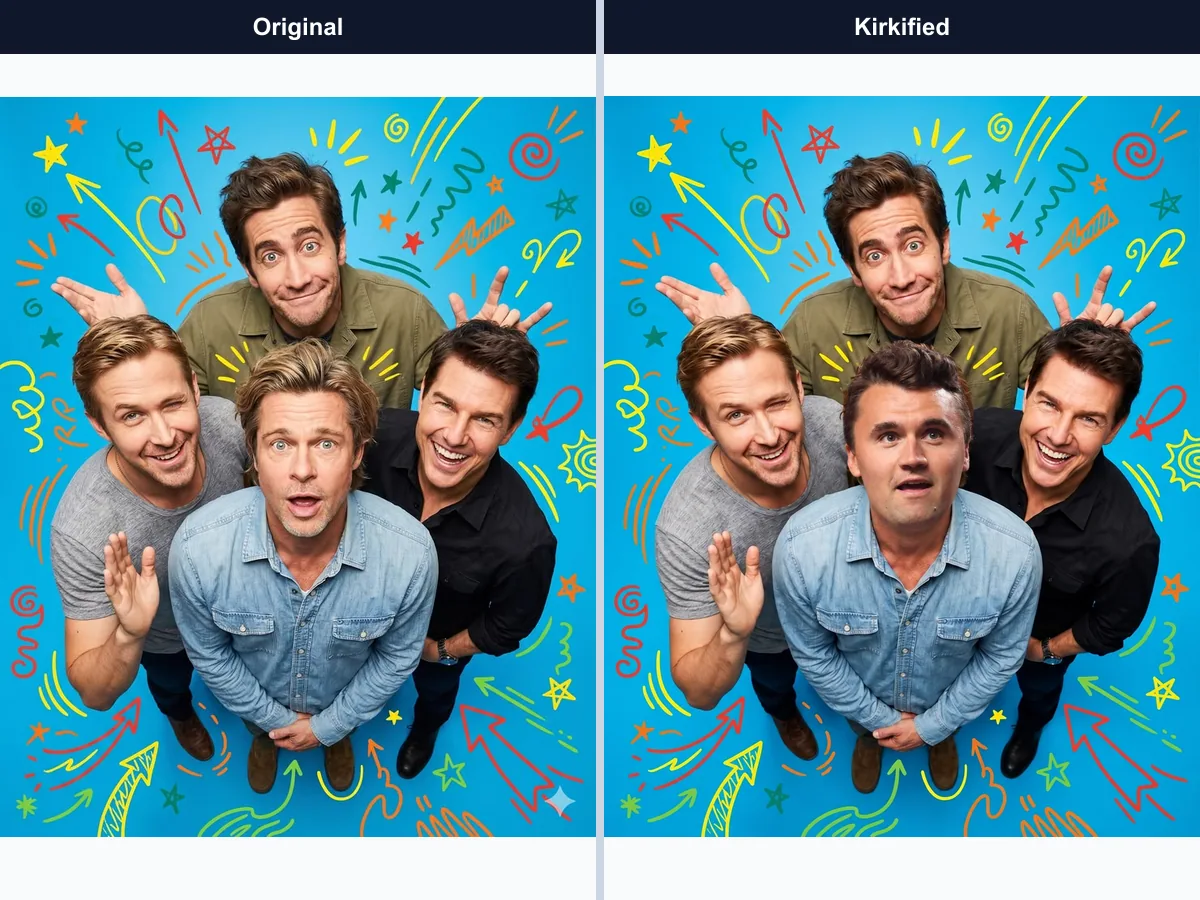
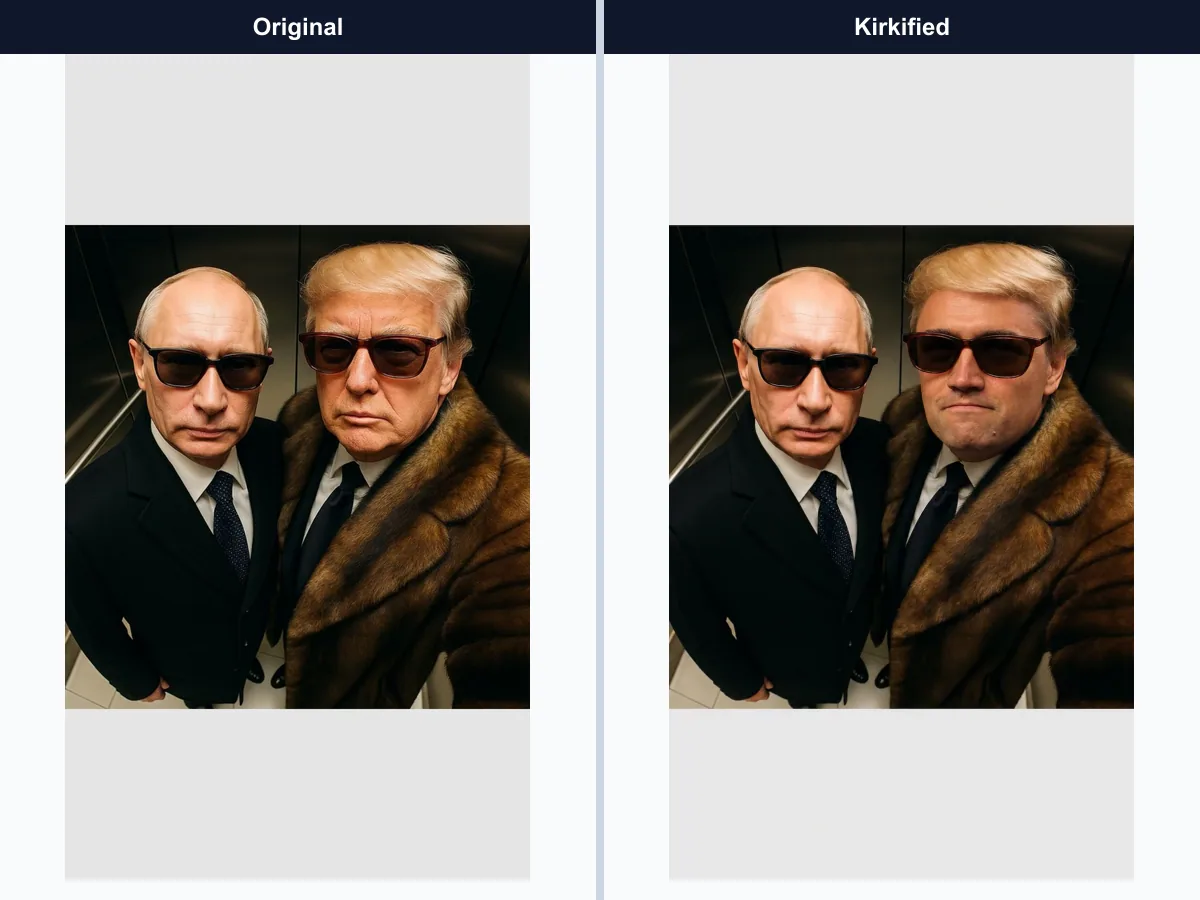
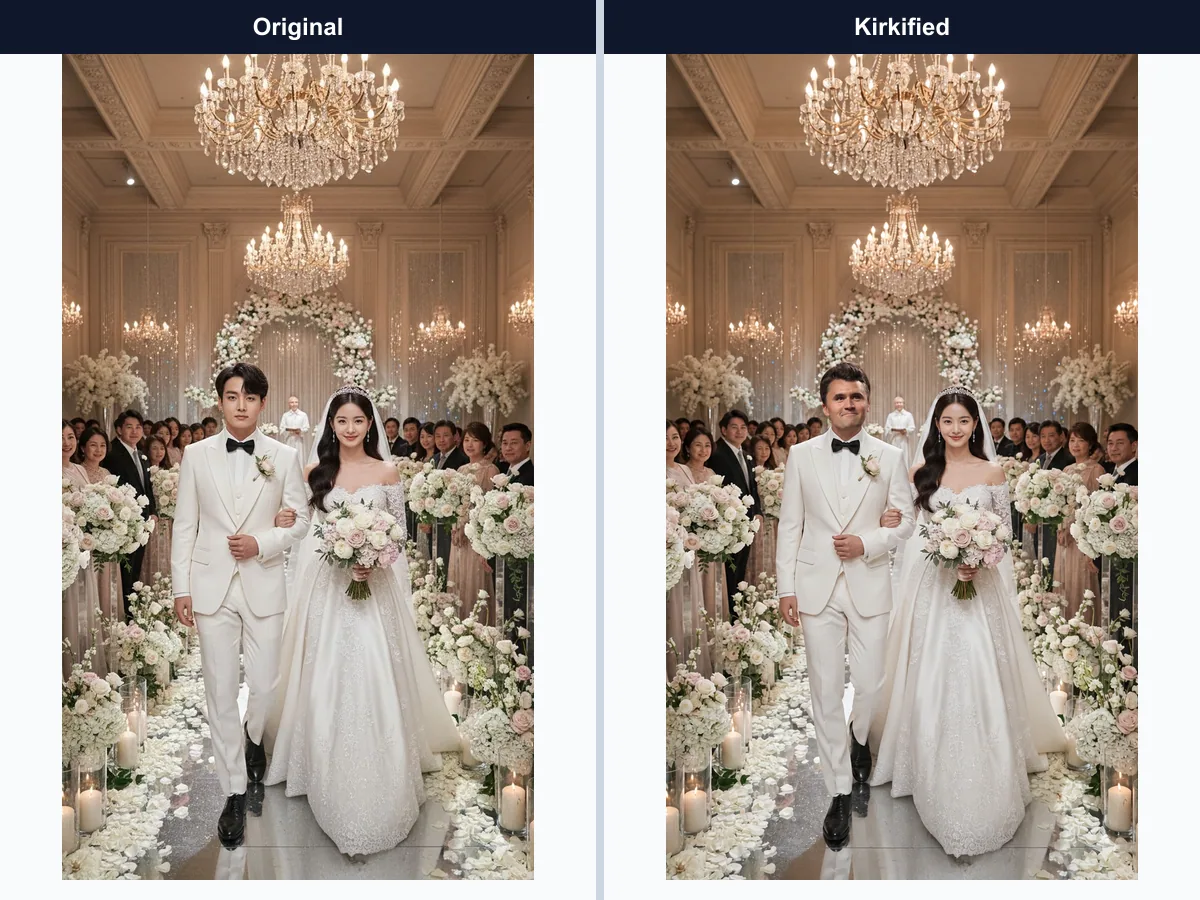
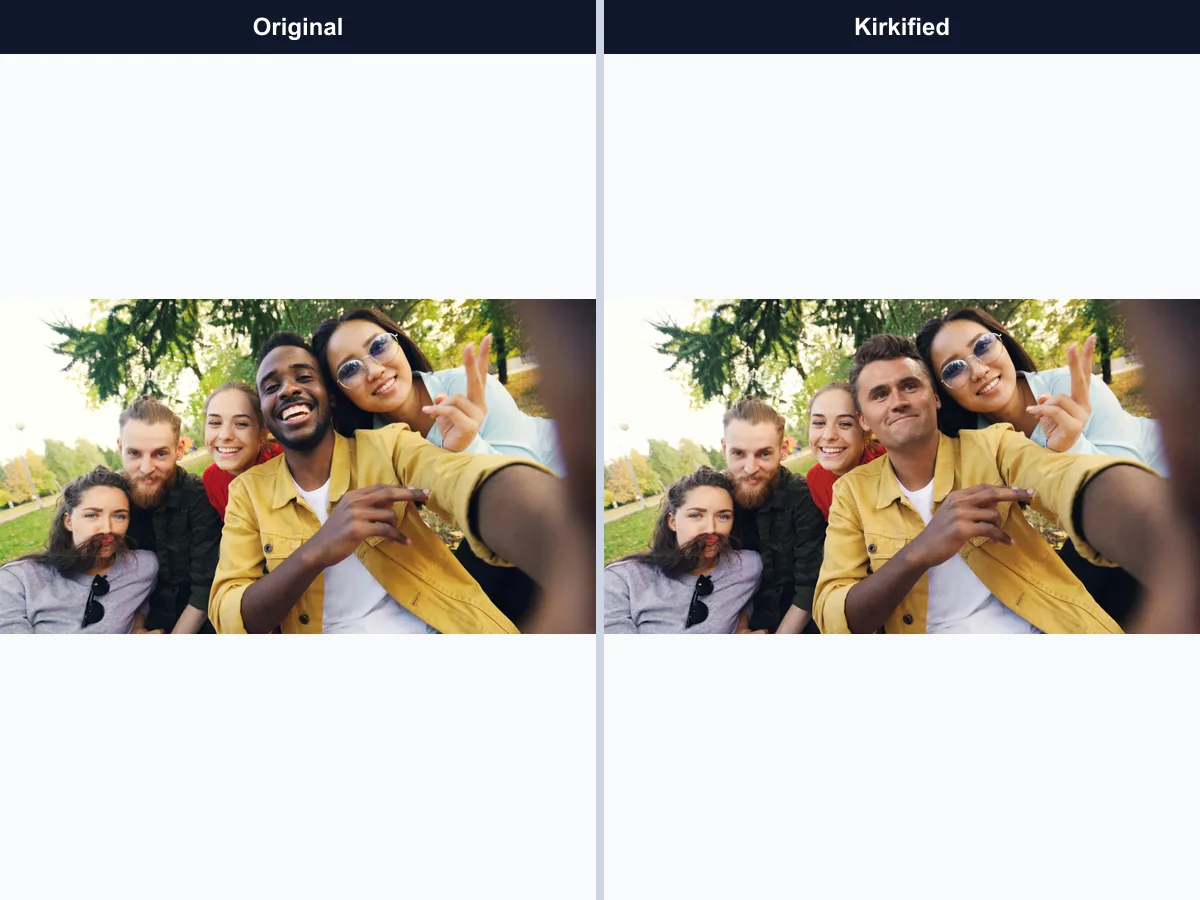
Multiple Faces Kirkify Group Photo Examples
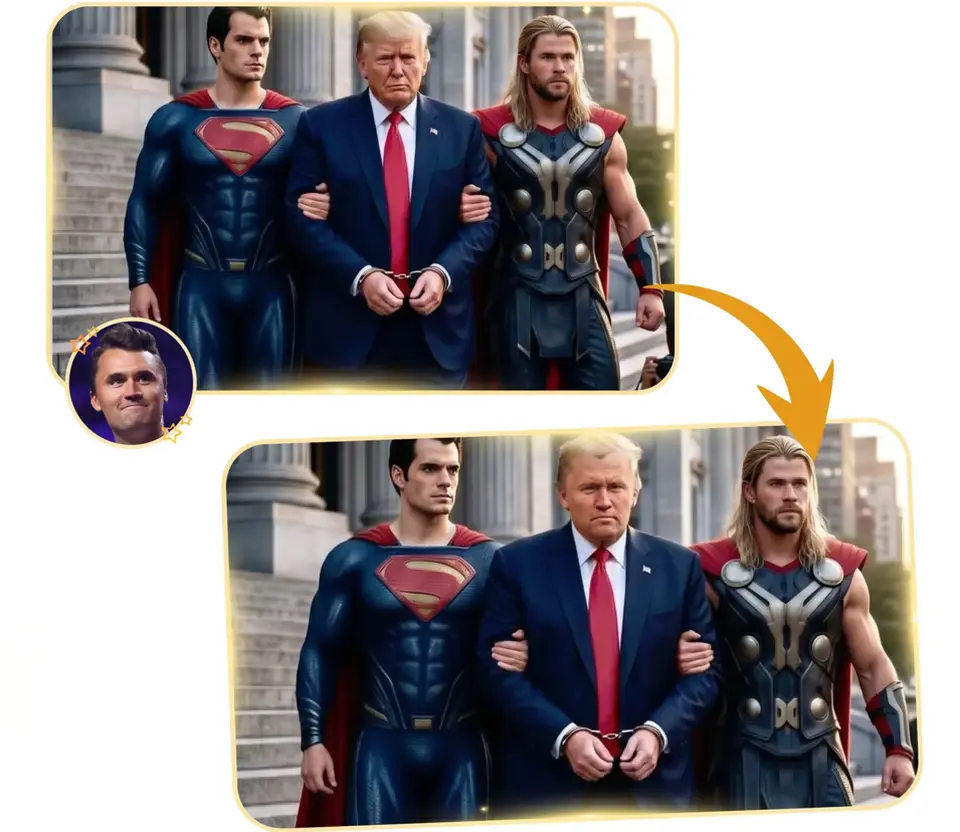
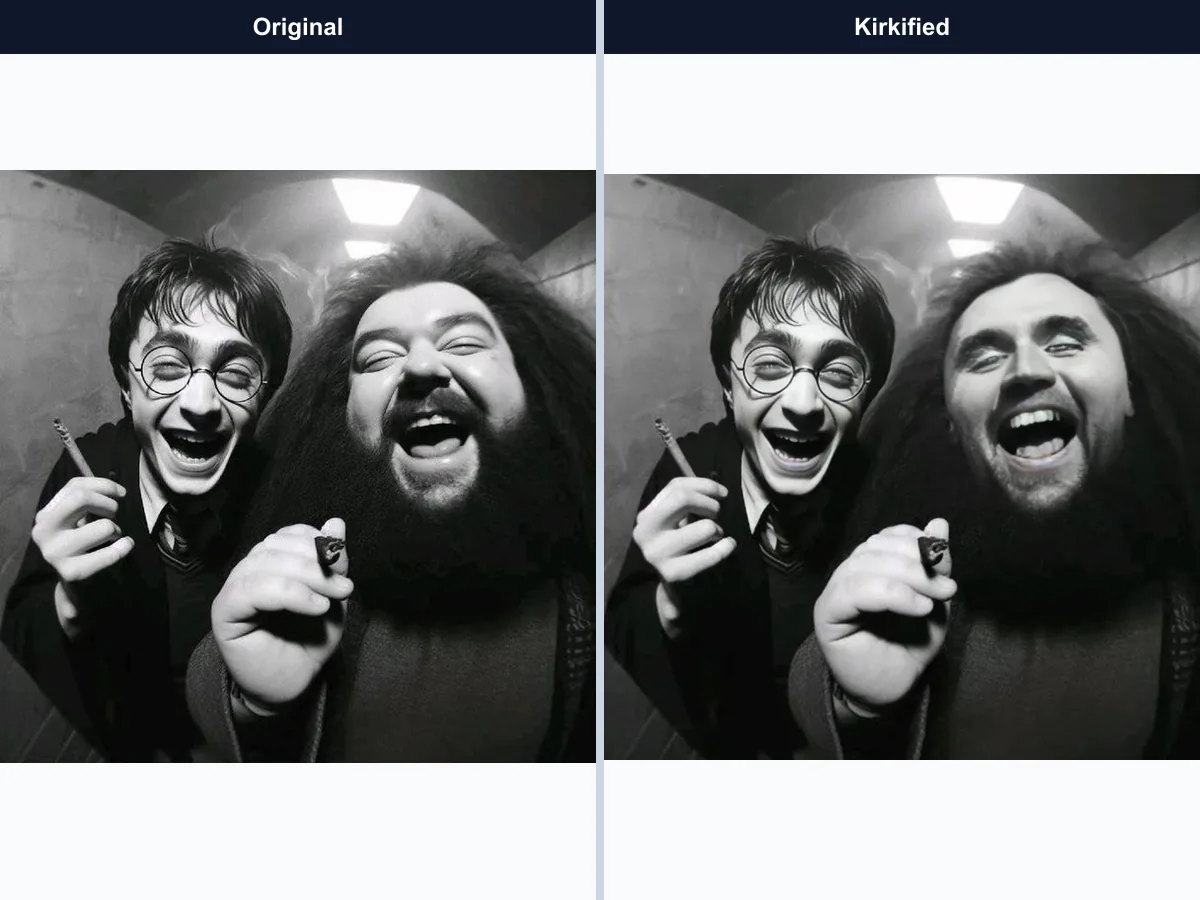
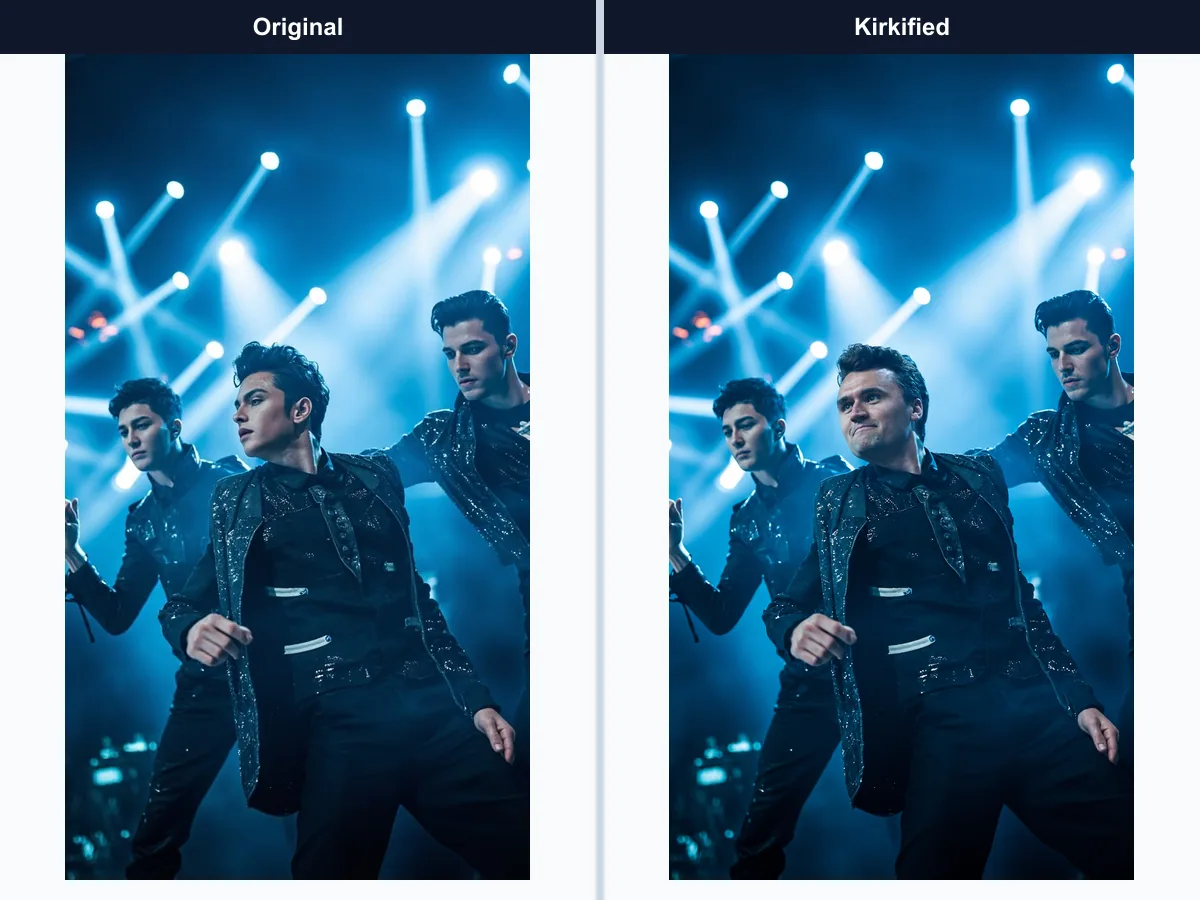
Browse group photo examples where one selected person receives the transformation while the surrounding composition remains recognizable.


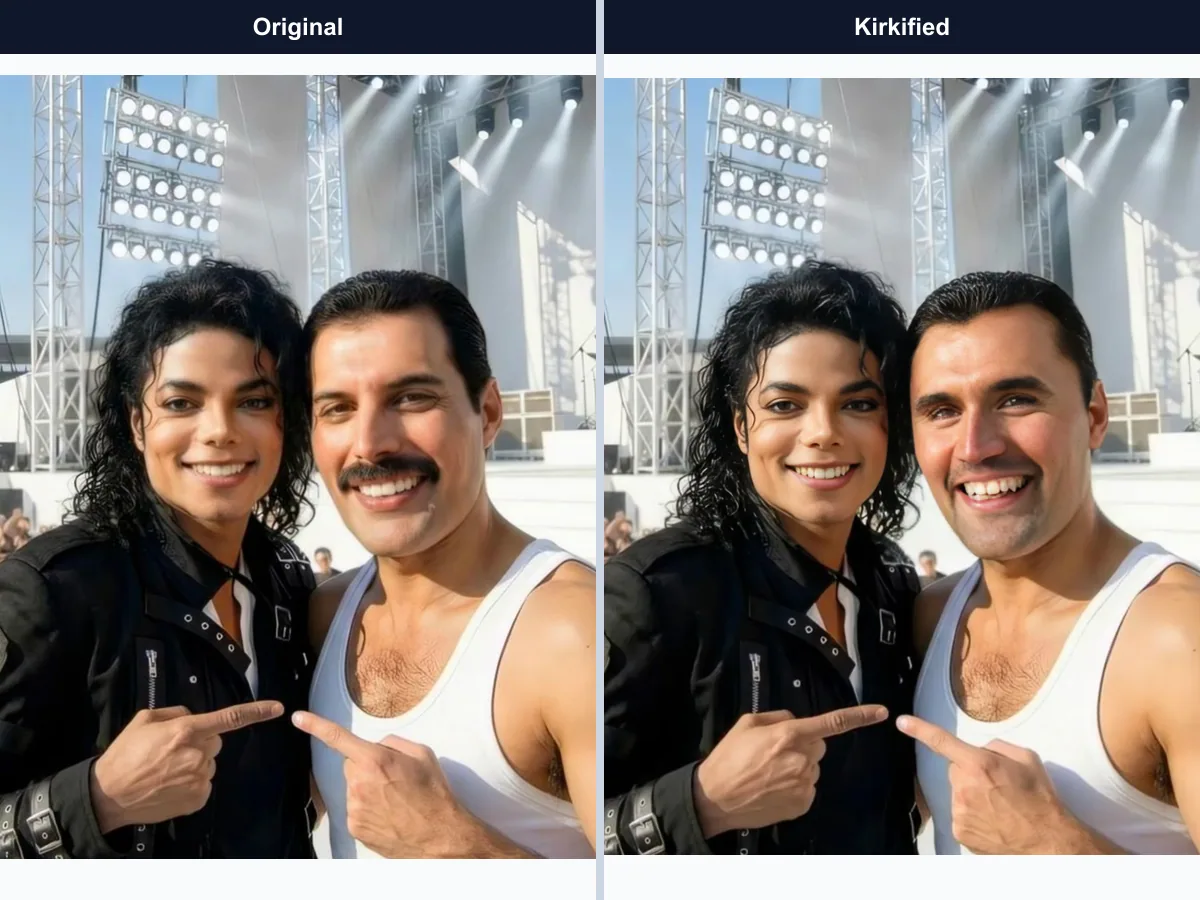
Multiple Faces Kirkify Features for Face Selection
Everything needed to upload a group photo, identify usable faces, select one person, and export the completed image in one browser workflow.
Group Photo Upload
Accepts JPG, PNG, and WEBP images up to 8MB so you can start with a common photo format.
Face Detection
Finds visible faces and presents selectable crops before generation begins, giving you control over the subject.
Single-Face Selection
Lets you choose exactly one detected face for each generation instead of editing the whole group by accident.
Generation Progress
Shows detection and generation status so you know whether the tool is ready for your selection or still processing.
Image Download
Downloads the completed group photo after processing succeeds, with the original composition preserved around the selected person.
Share Controls
Opens the existing Kirkify sharing flow for the finished image without requiring a separate export step.
Multiple Faces Kirkify FAQ
Answers about choosing a face, improving detection, image quality, privacy-conscious use, credits, retries, and sharing group-photo results.
Try Multiple Faces Kirkify on a Group Photo
Upload a supported image, review the detected faces, choose one person, and create a focused group-photo transformation for 2 credits total.